



As End of Month approaches, it’s important to make sure your inventory and records are up to date before you start your stocktake.
The steps below outline key checks and processes that help minimise stock variances, improve costing accuracy, and strengthen the reliability of your month end reporting. Taking the time to review these areas before stocktaking will help ensure that your system reflects the most accurate information possible.
Review units of measure and stock categories
Stock lists are the core of the system, governing the way your stock data is interpreted by the system and it is imperative that product units of measure are correct and consistent. Before completing your month end tasks, review your stock units of measure to ensure they match the way your supplier is invoicing the items.
You will also want to ensure stock categories match the way your supplier is invoicing the items, as this enables you to use category filtering for stocktakes and reporting.
You can check that your stock units of measure are entered correctly by reading through our Stock Entry & Measurement Guidelines help article.
To adjust stock item units of measure and categories, check out our help article on Editing existing stock by clicking here.
Approve all invoices and credits prior to stocktaking
Approving invoices increases your Theoretical Stock on Hand (TSoH) values, and approving credit notes can decrease your TSoH values. To ensure the system reflects accurate stock values, make sure all outstanding invoices and credit notes have been approved before you create a stocktake and begin counting stock.
This step is essential to make sure that the most recent stock price is used on a stocktake and also aligns your purchases with your closing inventory count.
Check out our help article on Receiving an Invoice and Credit Notes by clicking here.
Enter your Wastage
Unrecorded wastage is one of the most common reasons for stock variances. Lots of venues expect some wastage but don't always record it properly. Keeping track of wastage regularly helps set a baseline, so it's easier to spot when losses are truly outside what's normal.
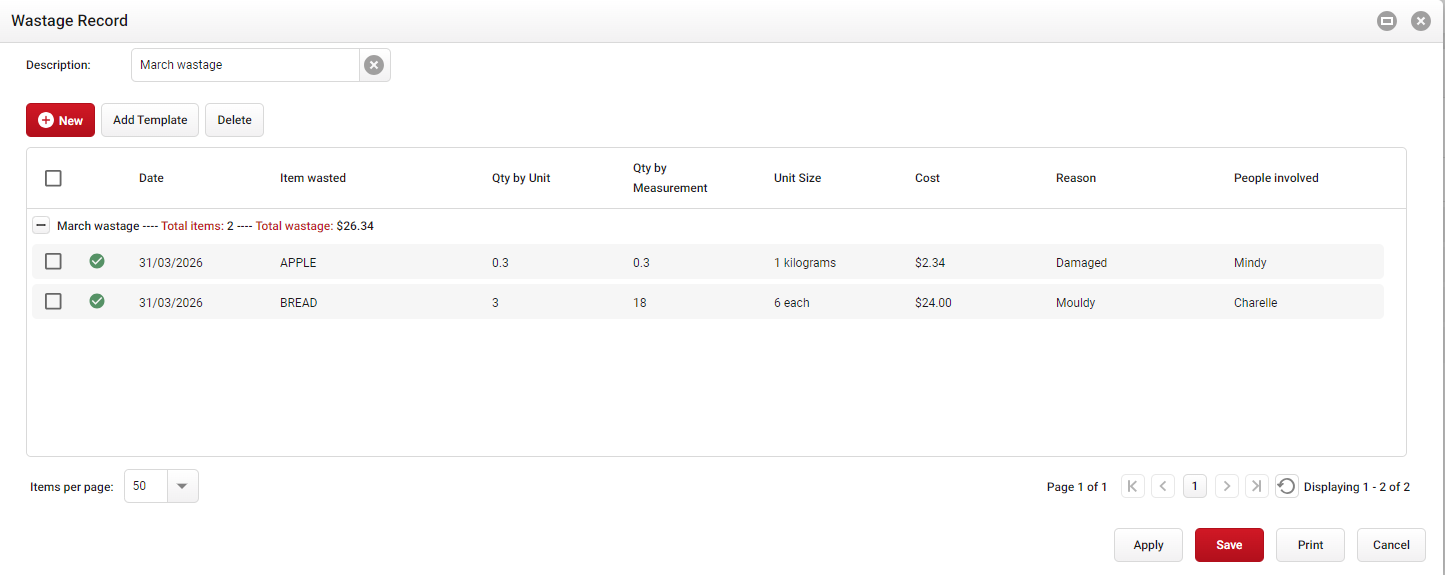
Click image to enlarge
Check out our help article on Entering Wastage Records by clicking here.
Enter your Production Records
If you are using Production Stock items, the cost that a Production Stock Item has in the system is based on the most recently produced cost from a saved Production Record. You will need to ensure that Production Records have been created to update the Production Stock cost.
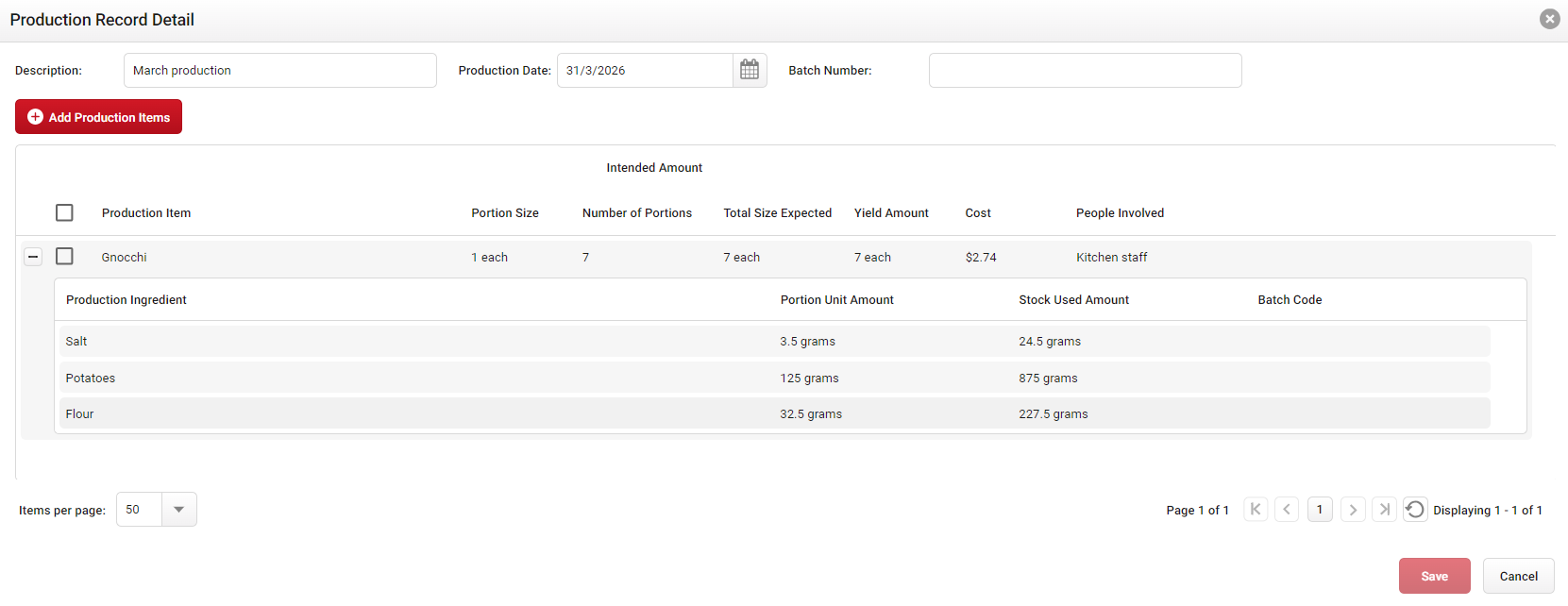
Click image to enlarge
Check out our help article on Creating a Production Record by clicking here.
However, if you need to force an update of any Production Stock Items to their latest cost it is possible to do this from the Production Stock supplier on the Stock Maintenance page. Simply select any Production Stock Items that need their cost updated and then click the Force update to Production Stock costs button to update the costs to their current costing value.
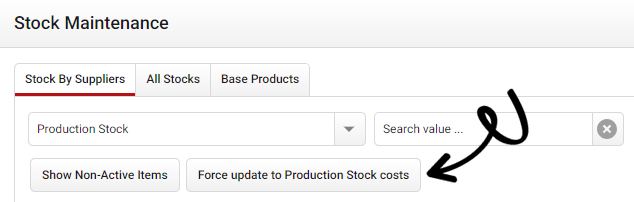
Stocktake preparation
Stocktakes display your full inventory list in the system and may not accurately reflect your active inventory. You can use Stocktake Templates to customise the stock items that appear within a stocktake for convenient entry, and you can also apply filters to a Stocktake, such as Last Count and Invoiced Between to filter out unused stock.
Check out our help article on Creating Stocktake Templates by clicking here.
If you prefer to count on a physical sheet, you can print your stocktake sheet by expanding the Stock heading from the navigation bar, then opening the Report page:
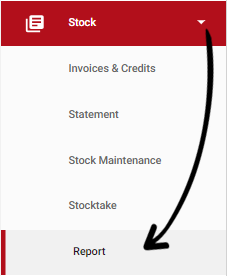 From here, locate the Stocktake Sheet report, which allows you to use templates and add filters.
When you transfer the counts into the systems stocktake, you can apply the same templates or filters.
Generating End of Month reports
Now that you have completed the steps above, you are all set to generate your End of Month reports. There is a wide range of reports available to suit different needs, and below are some of our recommended options.
Located on the Stock → Report page, you can find:
Located on the Financial → Report page, you can find:
The Food/Beverage Cost Report and Kitchen/Bar Performance Report require an opening and closing stocktake.