
Last Updated: March 17, 2026



Creating a Recipe (Sub-Recipe)
In this guide, we will create a Slow Braised Beef Cheek recipe. To do this, we first need to make a Sub-Recipe for the vegetable base used in the braise.
A Sub-Recipe is simply a normal recipe that we can include within another recipe. Like a "batch" or "prep" item made in-house (e.g., a sauce, dressing, or marinated meat) that you use as an ingredient in other dishes.
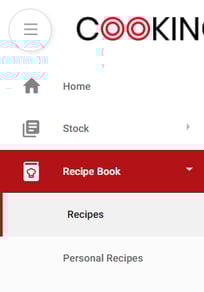
To begin, go to the navigation bar, expand the Recipe Book heading and open the Recipes page:
Select the Prep Recipes folder, and then click New. This is going to create the recipe directly within this folder.
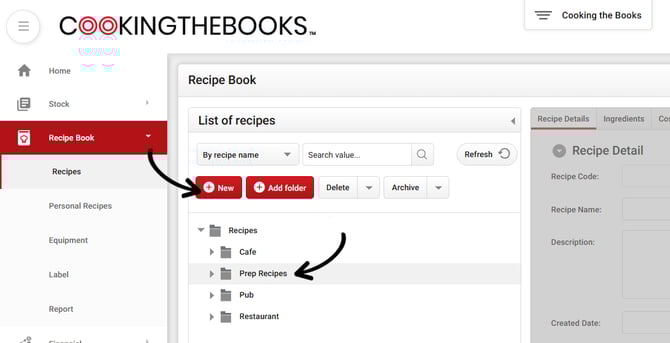
If you accidentally create a recipe in a different folder you can simply drag and drop it to the correct folder!
A new recipe will be created within this folder called New Recipe, which you can now customise.
In the Recipe Name field, enter Mirepoix Base. For the Description, you can copy and paste the following:
A prepared vegetable base of carrots, celery, and onions. Used as a foundation for braises, soups, and sauces.
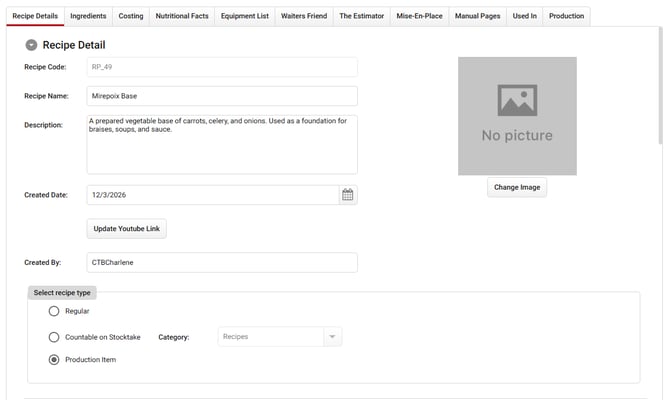
Under the Select recipe type setting, select Production.
When a recipe is set to Production, it’s treated as a stock item and it can be accurately counted during a Stocktake!
Scroll down to the Method section. You can copy and paste the following:
1. Wash and peel the carrots and onions.
2. Roughly chop the carrots, celery, and onions
3. Mix thoroughly and store until ready to braise.
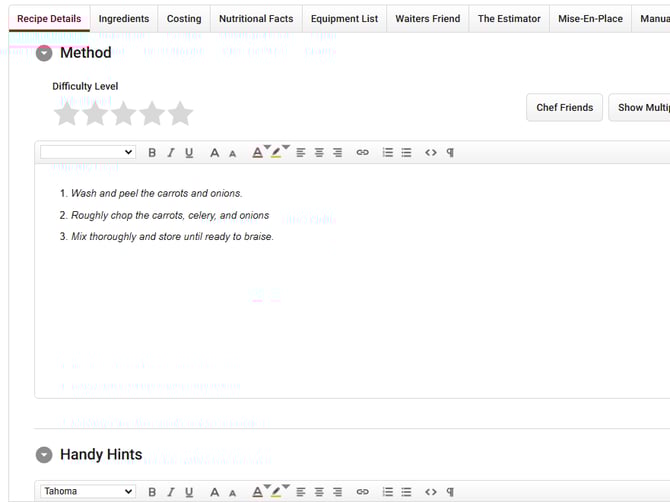
Handy Hints can be used to add any special notes or preparation tips that don't belong in the other sections.
Adding Ingredients
Now that the basic details of the recipe is complete, we can move on to adding the Ingredients that make up the dish. This involves selecting stock items from your database and noting the amount that should be used.
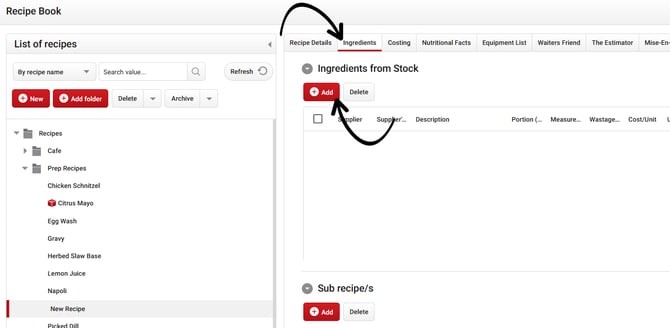
Navigate to the Ingredients tab. Under Ingredients from Stock, click the Add button.
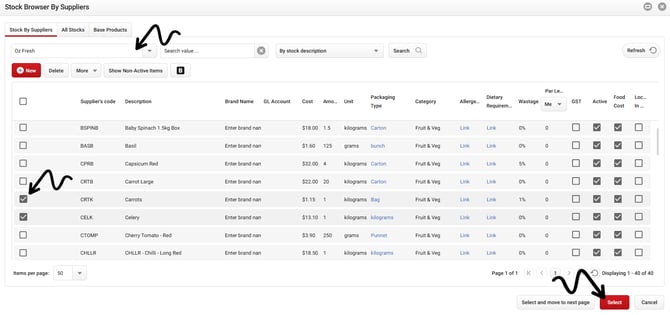
Select the Oz Fresh supplier from the dropdown menu, and add the following items used in this dish:
-
Carrots
-
Celery
-
Onion - Brown
Once you've added each ingredient, we have to set the Portion (Unit) and Measurement (i.e. how much of each ingredient is used in the recipe).
Set the following:
-
Carrots: 400 grams
-
Celery: 300 grams
-
Onion - Brown: 300 grams
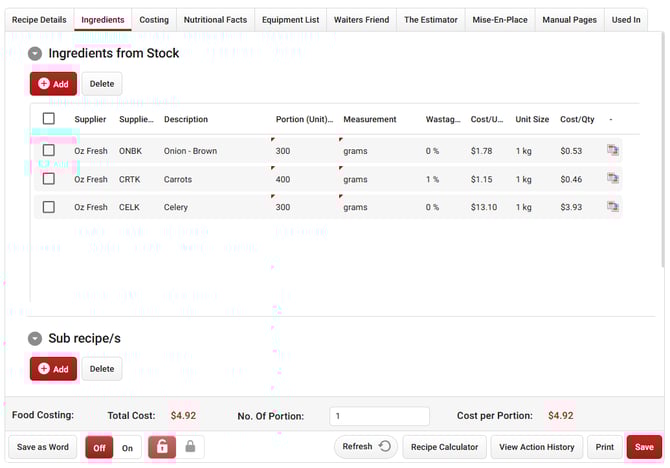
Tip: The Wastage value for an Ingredient will automatically populate if it's already been specified for the selected stock item.
Your Cost per Quantity will then be automatically calculated based on the specified Portion Size for each Ingredient!
Setting up Costing
Once our Ingredients have been added to the Recipe, move on to the Costing tab:
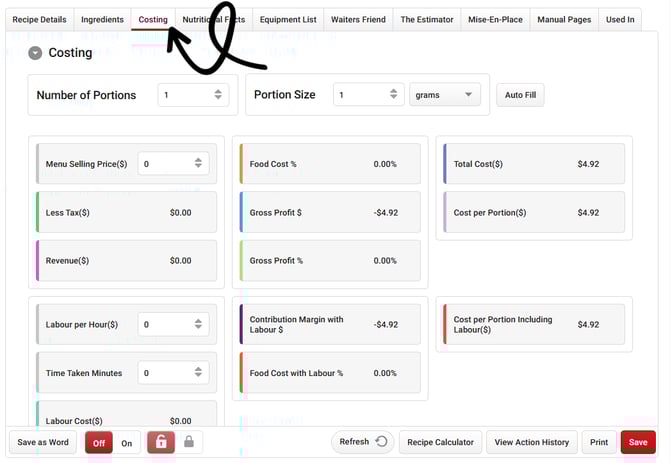
Enter in the Number of Portions this Recipe generates. For this batch, enter 1.
Now enter the Portion Size of the dish. For this batch, enter 1000 grams.
When entering the Portion Size, ensure you enter the final yield. If any cooking or reducing has occurred during the prep process, the final yield must be added here to accurately calculate your wastage and reduction.
Next comes the Menu Selling Price of our dish. When we create our main recipe you'll see this setting in action, but for this particular recipe leave it at $0.00 as it isn't sold directly to a customer.
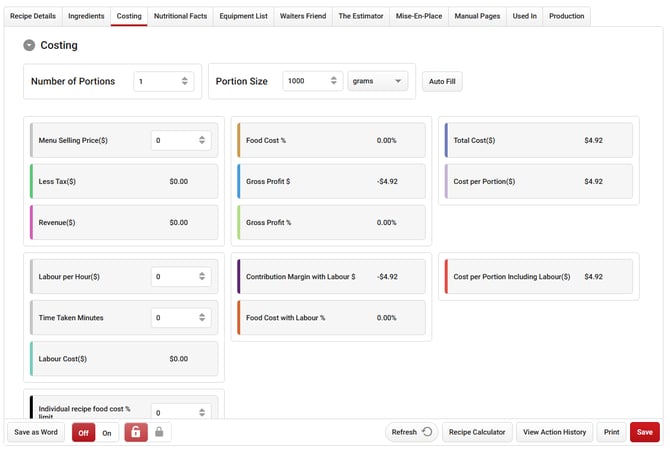
Click Save and you’ve finished creating the first recipe!
Creating the Main Recipe
Now let’s build the final dish. This will be the "Main" recipe where we use ingredients from the stock list and the Sub-Recipe you've just created.
To begin, click the little arrow next to the Pub folder, and then select the Mains folder.
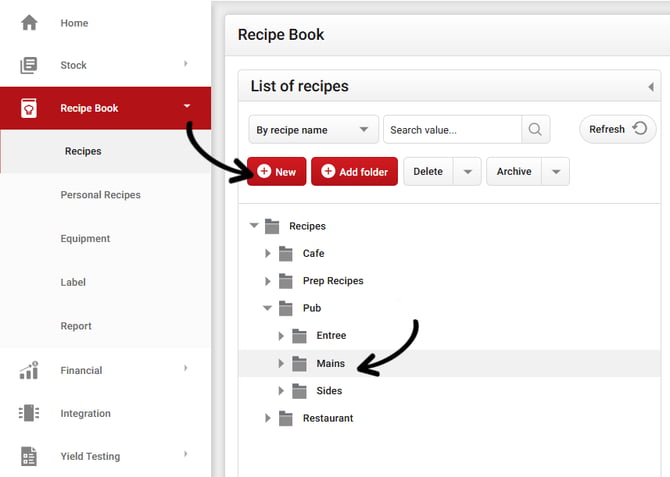
While in the Mains folder, click New to create a new recipe.
Name the recipe Slow Braised Beef Cheek.
Go to the Ingredients tab and click Add. Search and select the following ingredients:
-
BEEF CHEEK KG
-
COOKING WINE RED 15L
-
PREMIUM GRAVY 10K
Tip: You can switch to the All Stocks tab when you want to search through your full stocklist instead of a specific supplier.
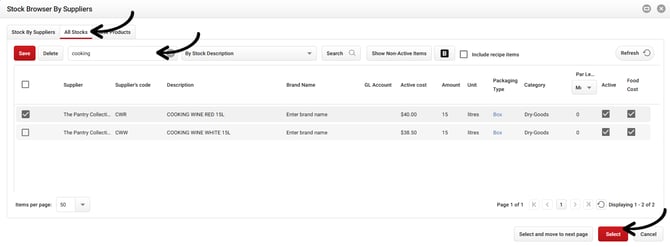
Once you've added the ingredients, set the Portion (Unit) and Measurement as follows:
-
BEEF CHEEK KG: 300 grams
-
COOKING WINE RED 15L: 100 ml
-
PREMIUM GRAVY 10K: 100 ml
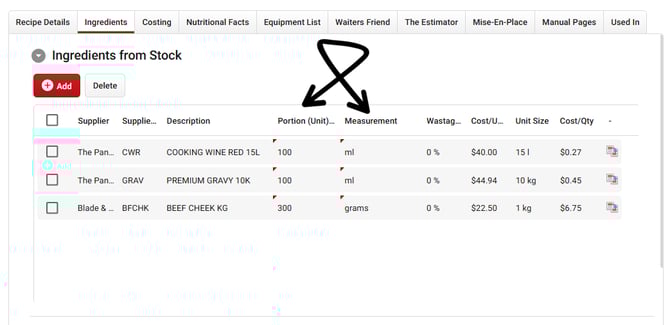
Next, under the Sub recipe/s section, click Add:
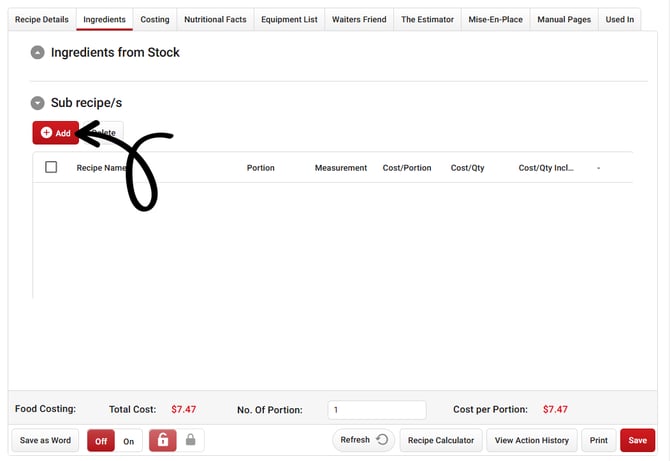
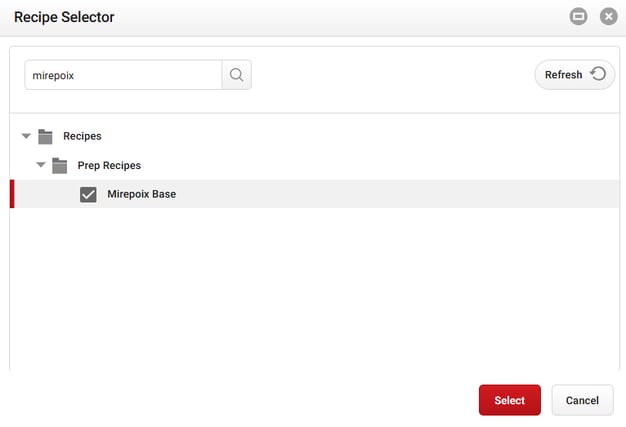
Search for the Mirepoix Base, and then click Select.
Now we need to set the Portion and Measurement for this recipe. This recipe calls for 300 grams of the Mirepoix Base:
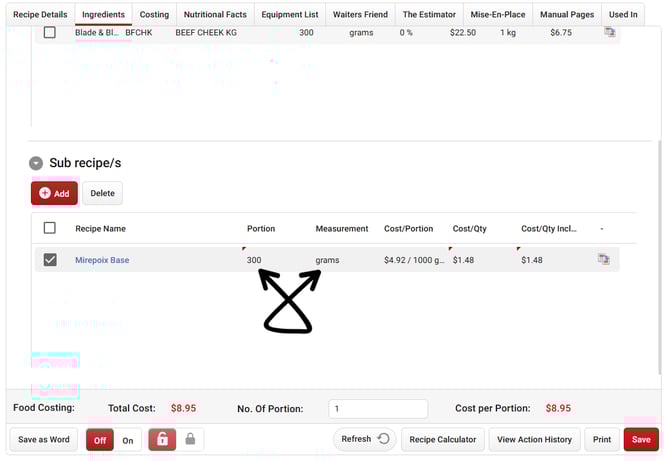
Once you've portioned the Sub-Recipe, navigate to the Costing tab.
All that's left is for us to specify the total Portions and Portion Size of the dish and the Menu Selling Price. This then allows us to accurately determine the Cost Per Portion of our Recipe, and how much profit we can expect it to return.
Since this is a single meal, set the Number of Portions to 1.
Click the Auto Fill button to enter in the Portion Size based off the ingredients and sub-recipe.
Enter a Menu Selling Price of $32.00.
Click Save when you're done!
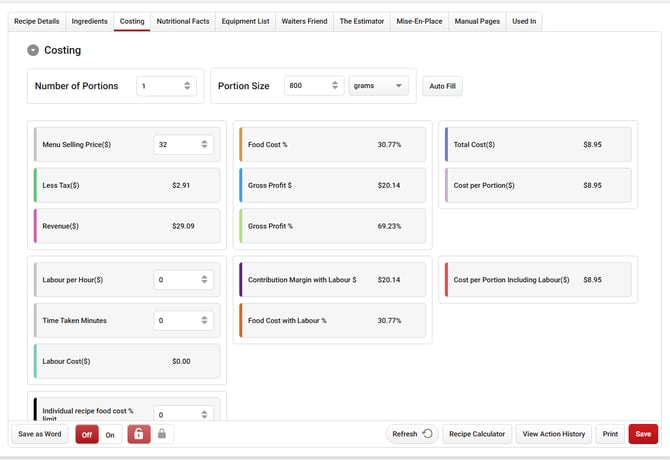
The system is now able to determine your total Cost Per Portion, Food Cost, Gross Profit, and more! You can refine costing further by entering any applicable Labour costs and time spent to more accurately determine the real cost of preparing your Recipe.