



This article explains how to raise a credit note request when received stock items don't match what's on a supplier invoice, and how to correctly receive and process a supplier credit note once it’s been issued.
Use this process whenever a supplier invoice is incorrect, such as when you’ve been overcharged, received incorrect quantities, been charged the wrong price, or returned goods to the supplier.
Creating a Credit Note Request
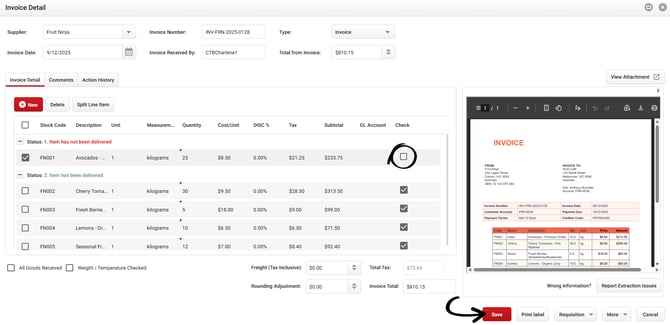
Click Save, then you’ll be taken to the Compare Order page.
From here, you’ll see the Proposed Action dropdown menu. This is where you can indicate that a credit note is required.
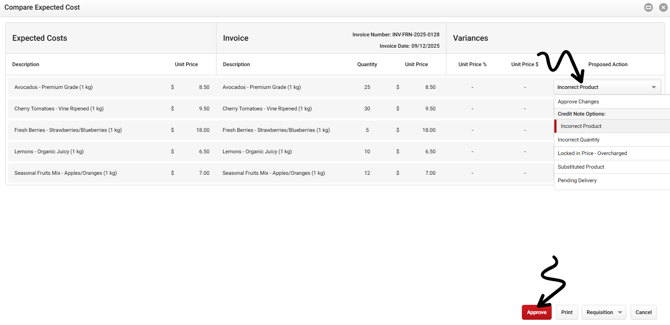
Select one of the Credit Note options that best describes the issue, such as Incorrect Quantity or Incorrect Price, (the wording can be adjusted in the next step to be more specific) and then click Approve.
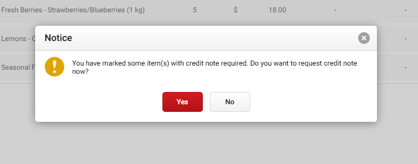
When prompted with the message “Do you want to request credit note now?”, select Yes to continue.
This will open the Credit Note Request window. From here, you can add additional detail in the Notes field if you’d like to provide more context for the supplier, such as what was delivered versus what was invoiced, or why goods are being returned.
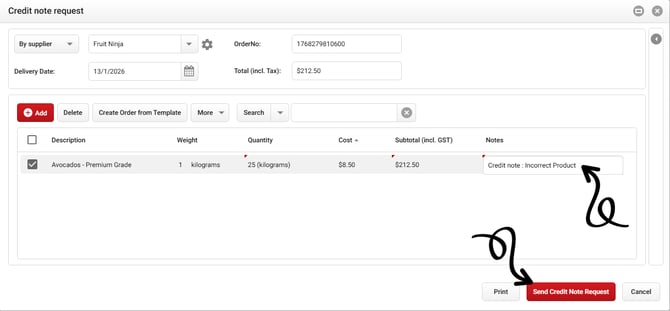
When you’re ready, click Send Credit Note Request. You’ll be prompted to select a supplier contact, after which you’ll be taken to the email window. This email can be updated with any further explanation if required, and you can also attach supporting evidence such as photos of damaged goods or a copy of the delivery docket.
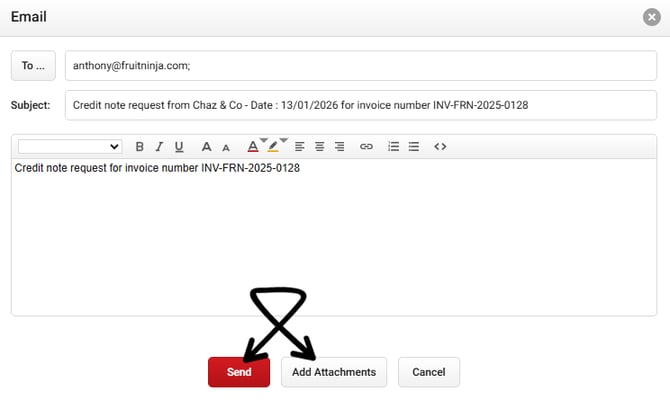
Once you click Send, the request is sent directly to the supplier for action. The supplier can then issue a credit note based on the details provided!
You can view the credit note request raised on the Receiving Orders page. The status will display as Link to Credit Note.

You can also locate the request on the Purchase Order page, where the status will be set to Credit Note Sent.

Receiving and Processing a Credit Note
When the supplier issues the credit note and sends it to your Email for Receiving Invoices, it will appear on the Receiving Orders page ready to be processed.

If the supplier references the original credit request number on the credit note, the system will automatically link the credit note back to the original request (similar to how a purchase order automatically links to an invoice).
If the credit note doesn't include the original reference number, you can manually link it by double-clicking the credit note in Receiving Orders, selecting the relevant credit request, and clicking Link to Purchase Order.
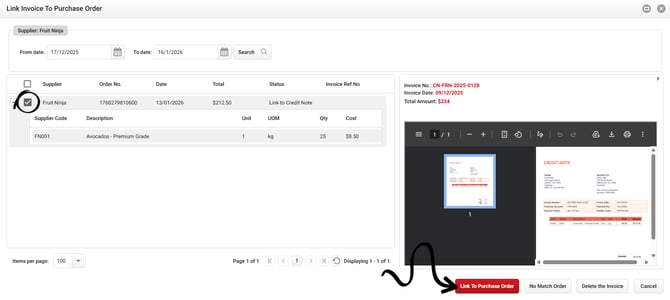
Note: All pending purchase orders and credit note requests from the same supplier will be listed on the left side of the Link Invoice to Purchase Order window. Ensure you select the correct credit request which references the original items.
If no credit request exists (e.g. you requested a credit directly with the supplier instead of through Cooking the Books), simply select No Match Order instead.
Next, on the Invoice details page, review the credit note and check off the items just as you would when processing an invoice.
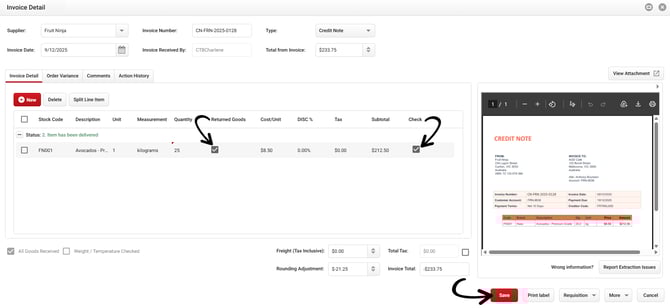
When Returned Goods is selected, this will return the quantity back to your Theoretical Stock on Hand.
After confirming all details are correct, simply Save and Approve the credit note. The credit will then be processed in the system in the same way as an invoice, ensuring your supplier balances, stock levels, and reporting remain accurate.