
Published: July 22, 2026



The Stock Pending Request page has a fresh new look, with updates designed to make managing your new stock items quicker and easier! Update new stock items via the receiving order screen, Process New Stock Items.
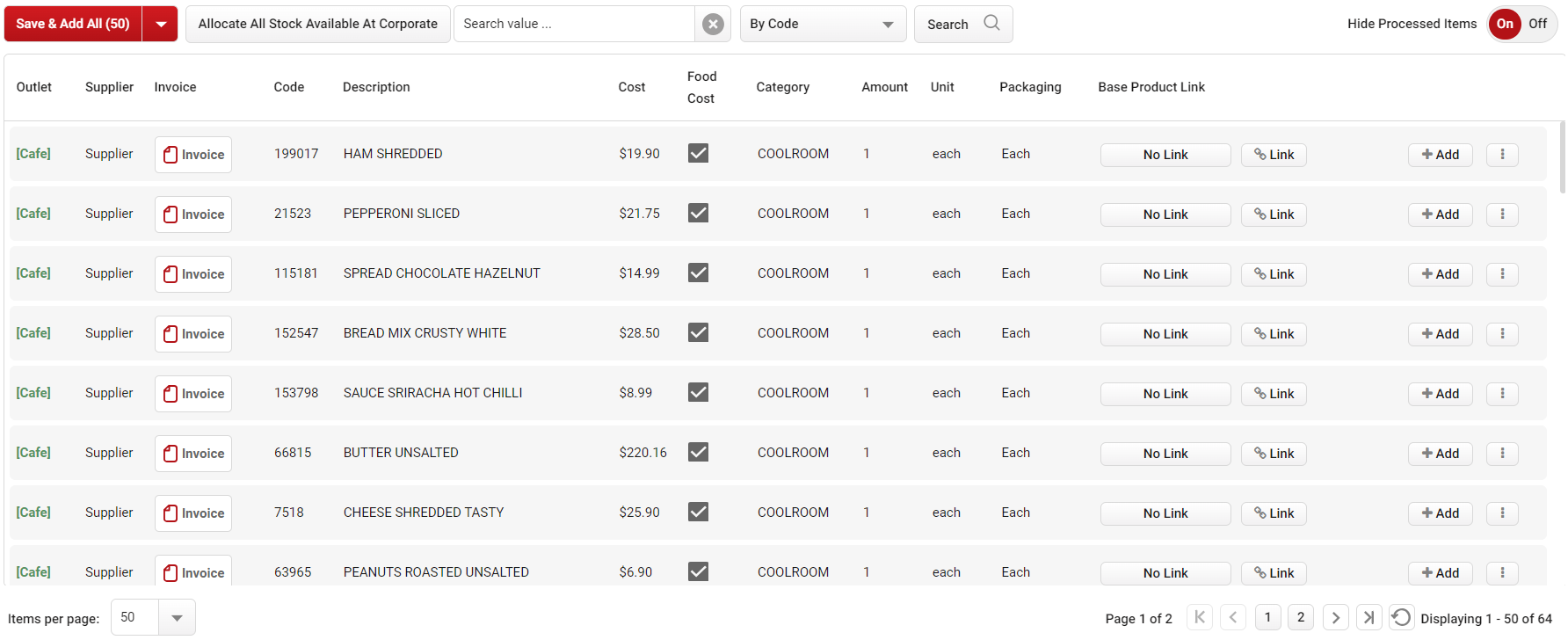
Click image to enlarge
Bulk Actions
Instead of adding stock items one at a time, you can now save and add them in a single action.
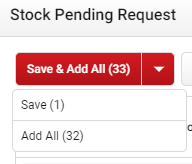
On the Stock Pending Request page, you’ll see a Save & Add All button in the top left-hand corner. There’s also a drop-down menu with options to bulk Save or bulk Add.
At this stage you will be prompted to ensure UOM (Units of Measurement) have been updated for all new items.
-
Save & Add All - Saves your changes and adds all stock items on the page to your supplier stock list
-
Save - Saves changes to your stock items without adding them to your supplier stock list
-
Add all - Adds all stock items on the page that don't have unsaved changes
Default Columns and Settings
We've added the option to simplify the page by removing some of the default columns, and adding text to some existing buttons, so it’s easier to focus on the information that matters most.
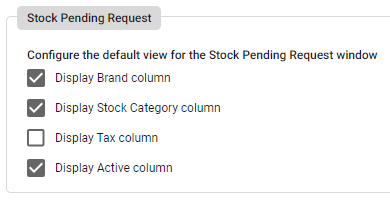
By default, the Tax column is now turned off, with the option to enable or disable this field, along with Brand, Category and Active.
If you’d like to switch any of these columns on or off, you can do this from the Settings page in the corporate outlet.
These settings are managed in the corporate outlet, so any changes need to be made there and will apply across the entire database.
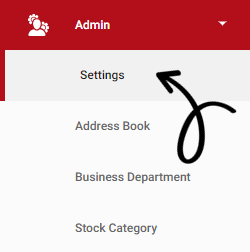
In the navigation bar, expand the Admin heading and open the Settings page.
 Scroll down to the Stock Pending Request section, where you can choose which fields appear in the default view - Make sure to click Save once you're done!
Refreshed Button Design
You may notice that some existing buttons look a little different, including Base Product Link, Link, Add and Allocate. While most of them work just as they did before, there is one small change to the Add button.
Previously, you needed to save any changes before adding an item. Now, when you click Add, the item will be automatically saved and added straight to your stock list
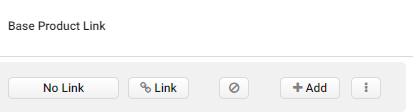
- Base Product Link - Allows you to link the stock item to a Base Product.
- Link - Allows you to link a new item to an existing product
- Add - Adds the new item to your database
- Allocate - Allocate the item to another outlet
You’ll also now find the Hide Processed Items toggle in the top right-hand corner of the page, which you can switch On or Off as needed.

Allocating Available Stock from Corporate
Stock items available in the corporate outlet will now appear greyed out, and the allocation button has been updated from an arrow to Allocate from Corporate.

Click image to enlarge The Allocate All Stock Available At Corporate button has also been relocated to the top-left corner of the page!