
Last Updated: July 27, 2026



What is the Stocktake Valuation Report?
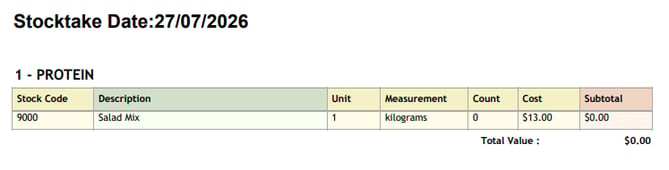
The Stocktake Valuation Report displays all stock items counted during a specific stocktake date for your selected Outlet(s), along with the total value of your stock count.
Please Note: All stock prices in the system are recorded excluding GST, so the totals shown in this report will not include GST. This ensures consistency when comparing your sales to your stock and cost of goods calculations, as GST is excluded throughout.
How to Generate the Report
To generate a Stocktake Valuation Report, go to Stock > Report and select Stocktake Valuation Report.
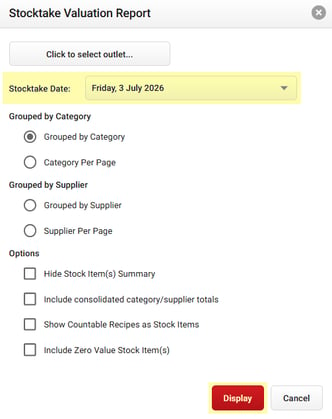
Select your required stocktake via the Stocktake Date drop-down menu, then click Display.
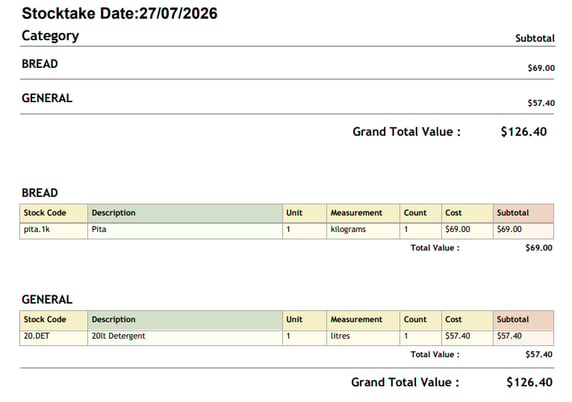
This allows you to export a completed copy of your Stocktake in Excel or PDF format.
Report Filtering
Grouped by Category
- Grouped by Category: Groups all stock items together under their respective Categories.
- Category Per Page: Displays each Category on its own page.
Grouped by Supplier
- Grouped by Supplier: Groups all stock items together under their respective Suppliers.
- Supplier Per Page: Displays each Supplier on its own page.
Please Note: You can only group the report by either Category or Supplier, not both at the same time.
Options
- Hide Stock Item(s) Summary: Hides individual line item details, so the report only displays totals per Category or Supplier.
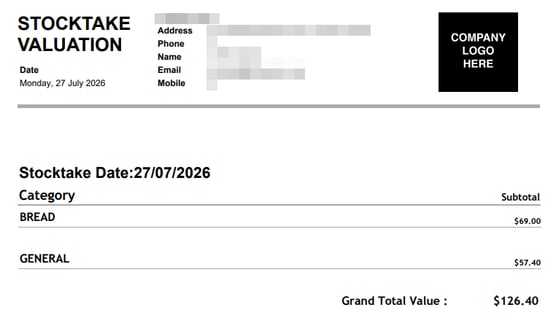
- Include Consolidated Category/Supplier Totals: Adds a summary of totals for each Category or Supplier at the top of the export for easy viewing.
- Show Countable Recipes as Stock Items: By default, when a Countable on Stocktake Recipe is used in system calculations, it will be broken down into its ingredient Stock Items rather than appearing as the Recipe itself. Enable this setting if you'd prefer to see the whole Recipe count as a single stock item, rather than broken down into its raw ingredients.

- Include Zero Value Stock Item(s): Includes stock items that have not been counted (i.e. sit at zero value) in the report.
Tip: Running the Report from Corporate
If you generate the Stocktake Valuation Report from the Corporate level, you can skip the Click to select outlet button and instead use the Stocktake Date drop-down to select all the required dates. The export will show which Outlet each stocktake count was pulled from, so selecting the relevant dates alone is enough to bring through the correct data for each Outlet.