
Last Updated: April 29, 2026



About the Shortcuts Menu
The Shortcut Menu lets you create a personalised list of your most frequently used pages, reports, and actions for quick access. Instead of clicking through multiple menus each day, you can find everything you need in a single, convenient location!
Your frequently visited pages may differ from those of other users, which is why the Shortcuts Menu is personalised to your account.
Customising your Shortcuts Menu
The Shortcuts Menu is located in the top navigation bar and is collapsed by default, displaying only the Shortcuts icon.

To customise your Shortcuts, hover over the icon to display the Shortcuts label.

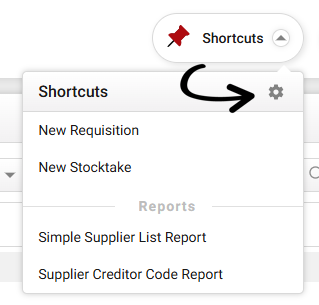
Clicking the drop-down arrow will display the items currently in your Shortcuts Menu. Select the cog icon to open the Shortcuts Manager window and edit your Shortcuts Menu.
Shortcuts are listed on the left side of the window under Available Shortcuts. The Shortcut Name is the specific page, action, or report, and the Location is the area of the system where that item exists.
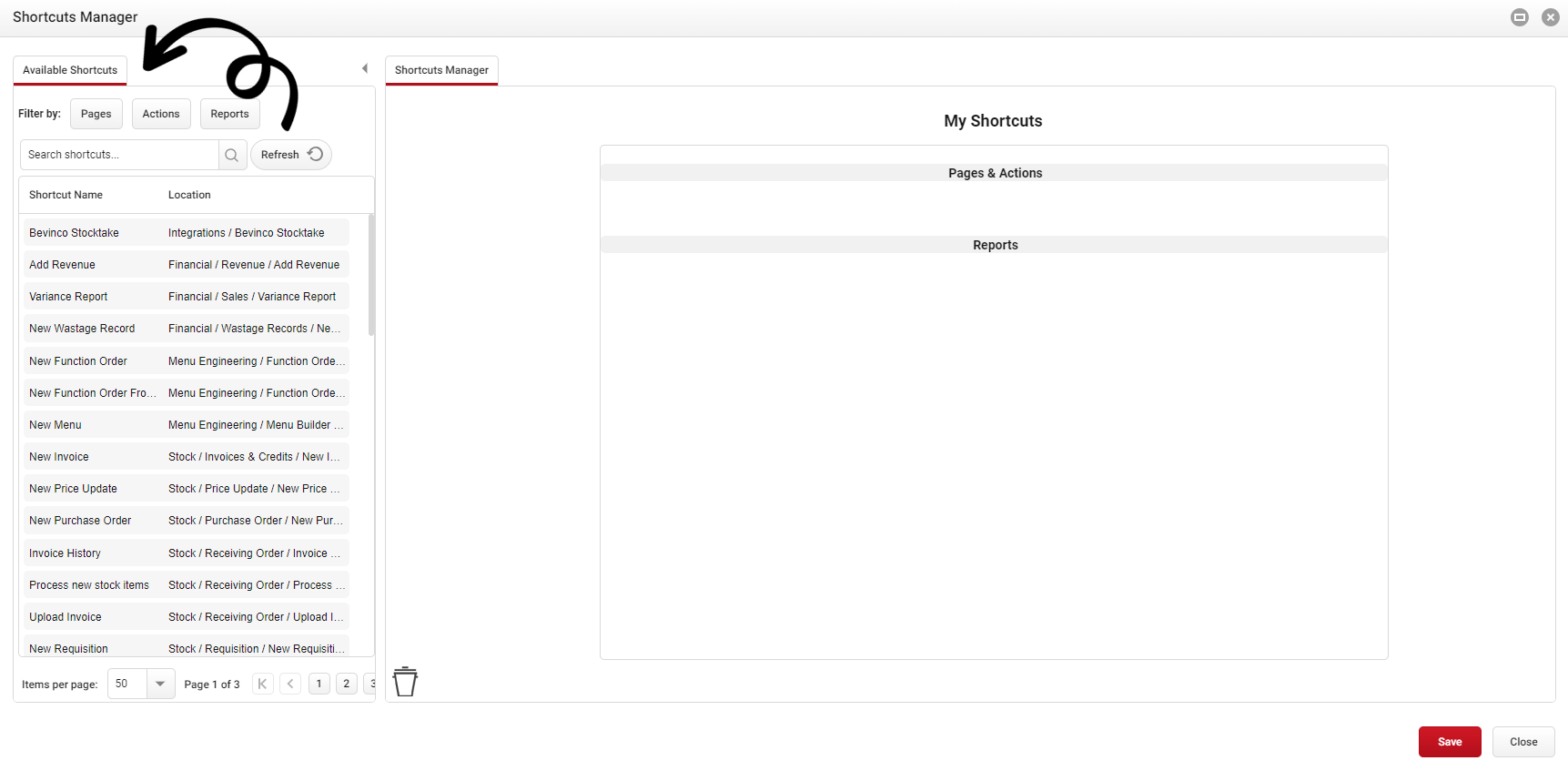
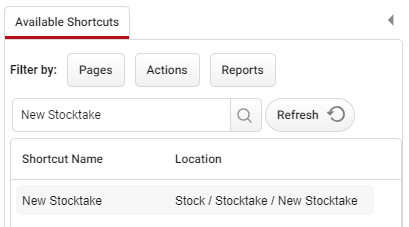
Click image to enlarge You can filter the available shortcuts by type using the Filter by buttons at the top of the section, or search for a specific shortcut by typing its name into the search bar.
All shortcuts will be visible even if a user does not have access to that location, however, they will not be accessible. See Broken Link Shortcuts for more information.
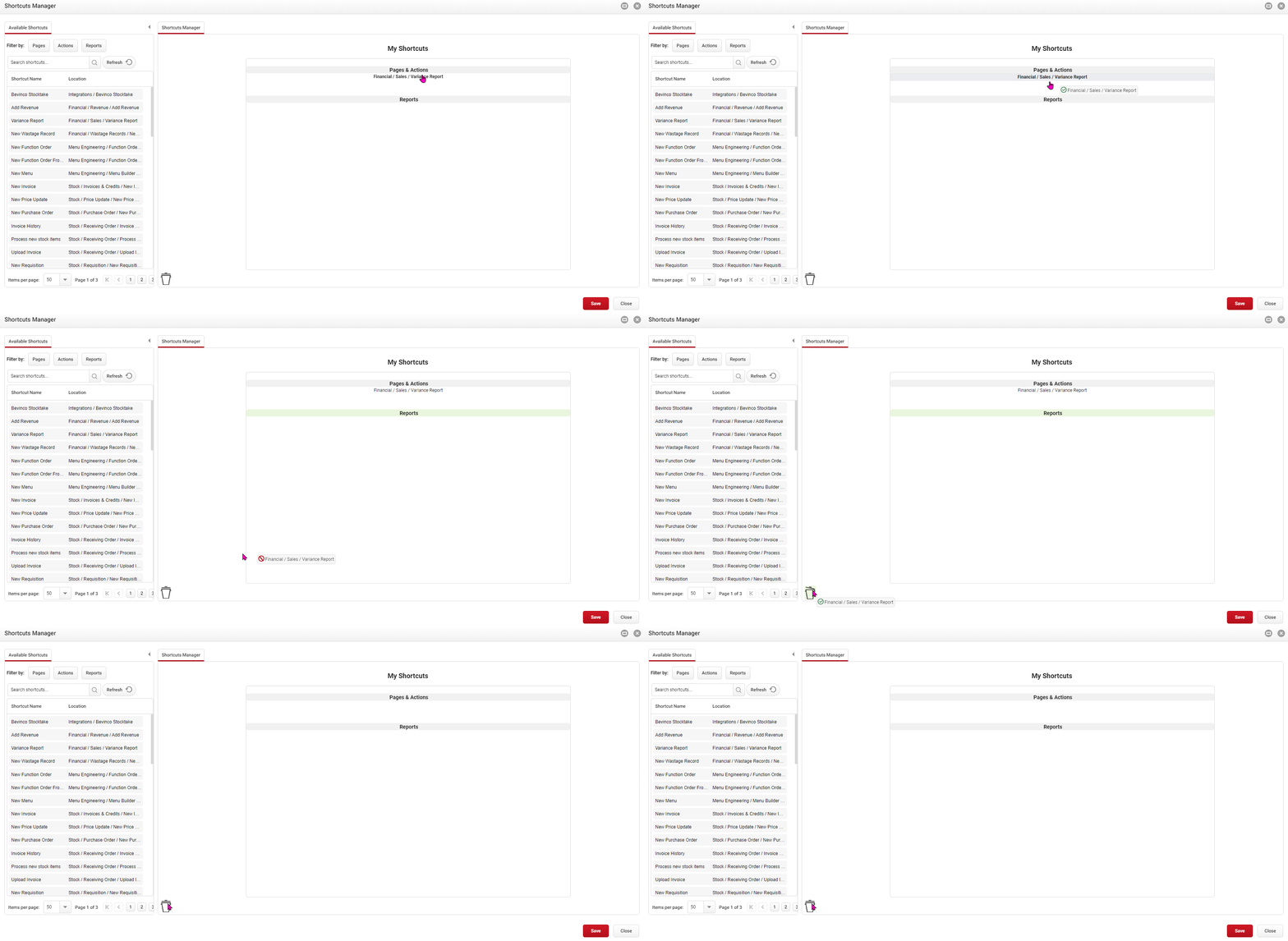
The My Shortcuts list on the right side of the window shows the shortcuts that will appear in your Shortcuts Menu. You can drag and drop items from the left side to the right to add them and they will automatically be grouped into the Pages & Actions or Reports section based on their functionality.
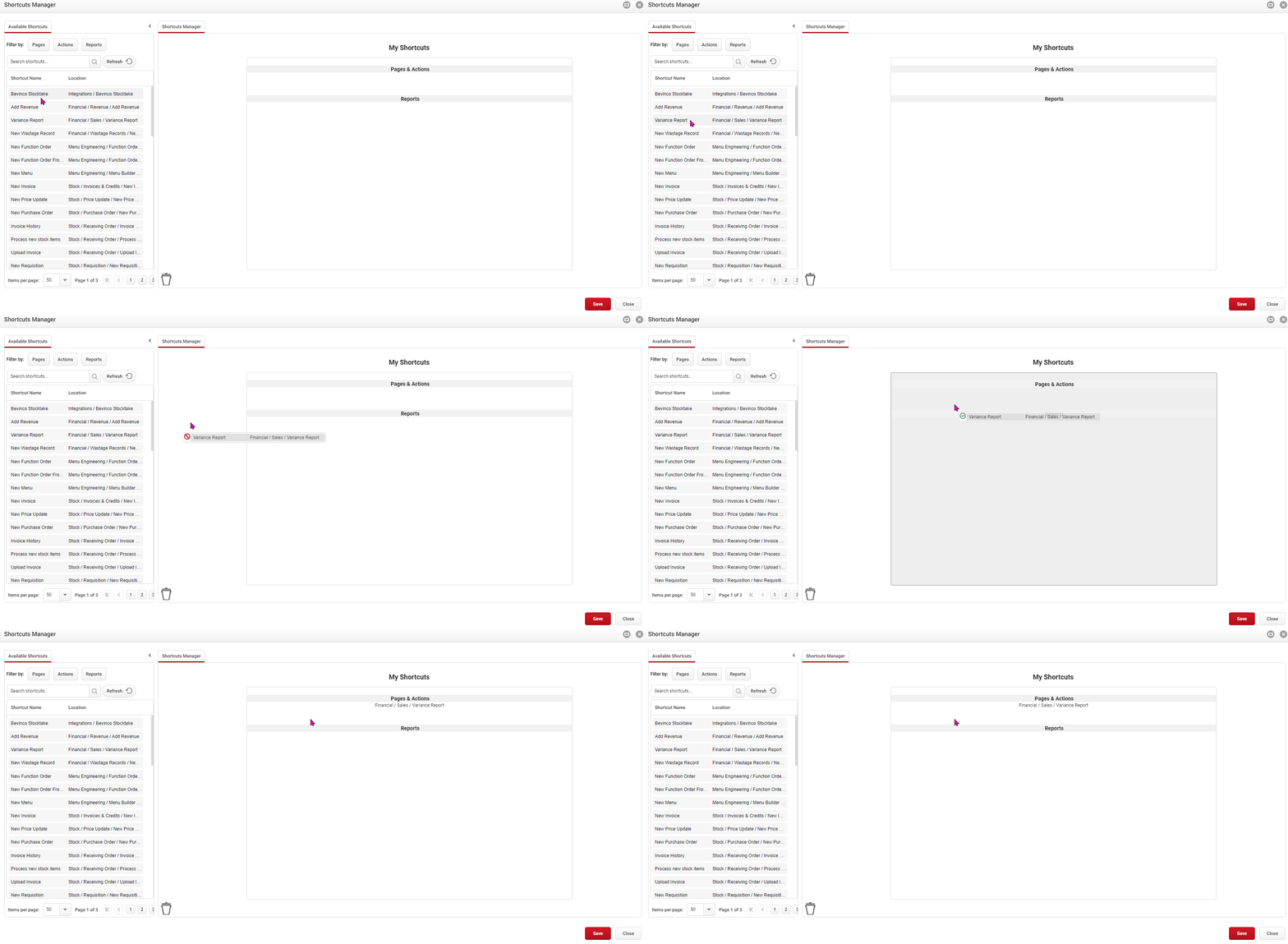
Click image to enlarge Shortcuts can be removed by dragging and dropping it from the My Shortcuts list into the bin icon.
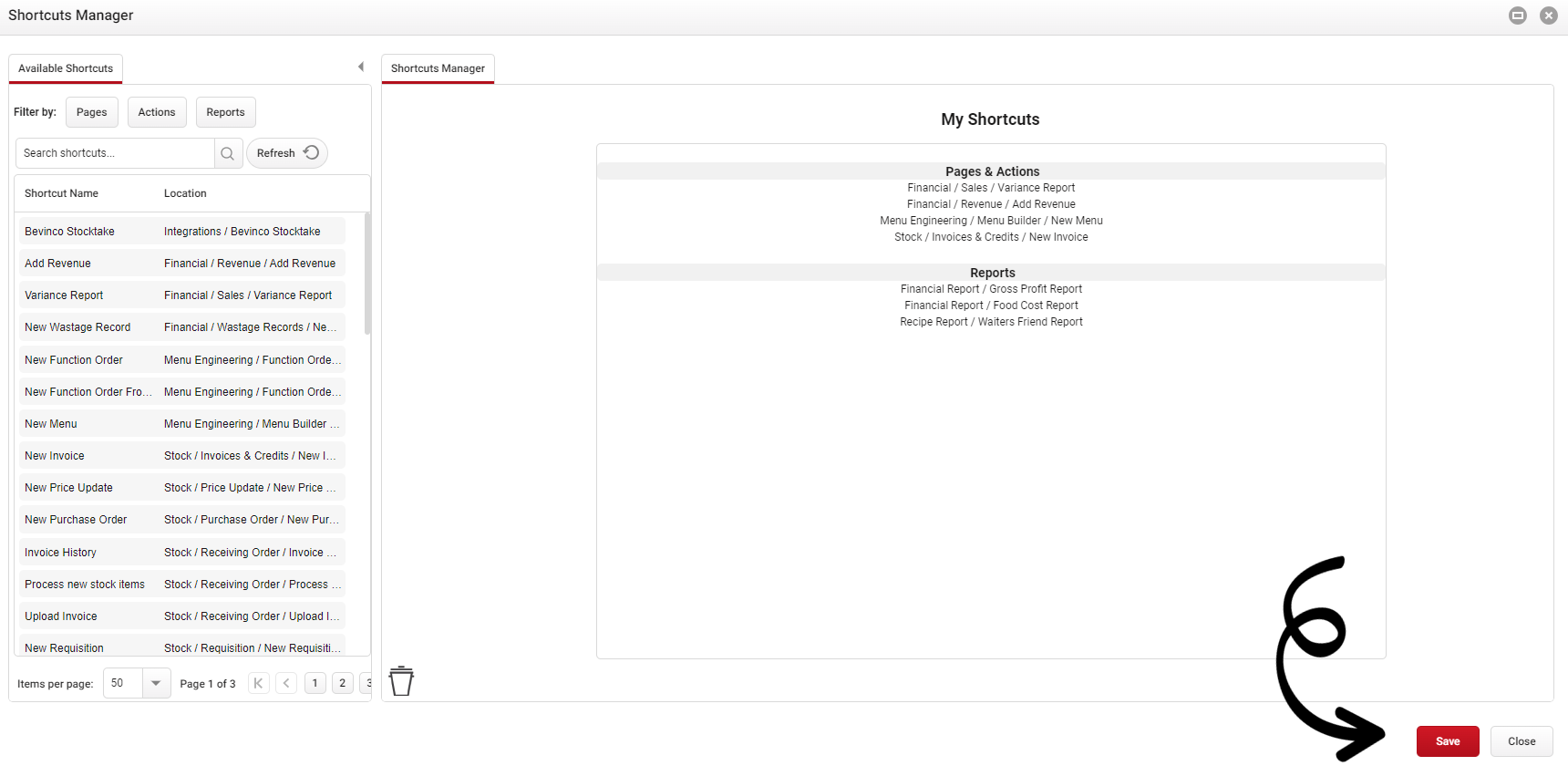
Click image to enlarge Once you are happy with your Shortcuts Menu, click Save to apply the changes.
Click image to enlarge Now that you have added in your Shortcuts, these will appear under the Shortcuts Menu icon on your top navigation bar when you select the drop down arrow.
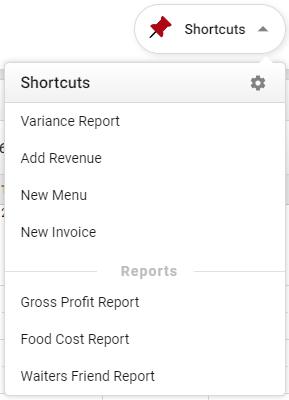 The Shortcuts Menu is split into two sections, Reports which are Shortcuts to any report pages, and Pages and Actions, which are Shortcuts to any other pages or functions.
You can add up to 10 report shortcuts, and 10 page and action shortcuts.
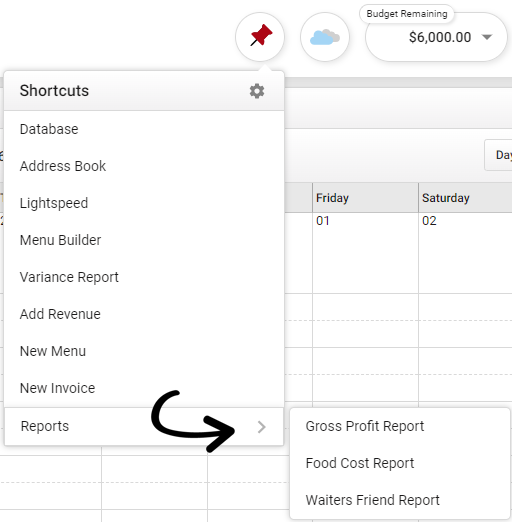
Reports can be compressed to a Reports submenu which you can expand by hovering over the drop-down arrow.
Managing another users Shortcuts Menu
If your account has access to the Licence and User authorities, you can also modify another user’s Shortcuts Menu.
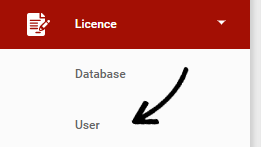
From the navigation bar, expand the Licence heading and open the User page.
 Here you will see a list of all current users in your database. Right-click the user you want to update and select Manage shortcuts.
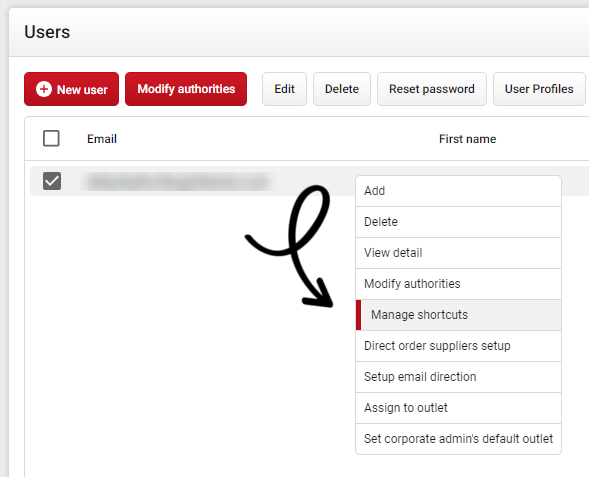 This opens the Shortcuts Manager window for the selected user, allowing you to drag and drop Available Shortcuts into their Shortcuts Menu.
Once you are happy with their Shortcuts Menu, click Save to apply the changes.
Broken link Shortcuts
All Shortcuts will be visible even if a user doesn't have access to this location in the system. If you add a Shortcut for a location that a user is not authorised to access, it will appear as a red broken link.
 To allow users access to the page, you will need to provide them the relevant user authority - Please click here to view our help article on Modifying User Authorities.
Alternatively, the shortcut can be removed by dragging and dropping it from My Shortcuts into the bin.