



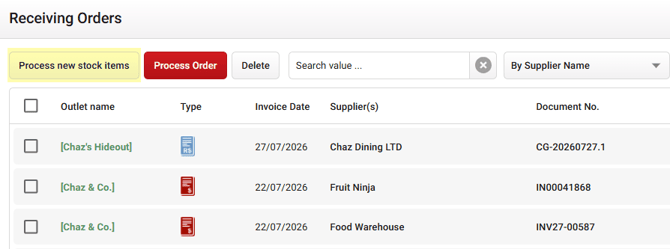
Why Accuracy Matters
The information entered here - prices, quantities, and item details - flows through to
Purchase Orders, Invoices, Stocktakes, Recipes, and more. If you notice a recipe or
report showing inaccurate figures, incorrectly entered measurements at this stage are
very often the cause.
Therefore setting the Unit of Measurement, Amount, and Packaging Type to match the
Suppliers Code correctly is essential.
Your Amount and Unit of Measurement should align with your Cost.
Think of your data entry as a simple sentence:
- I get 12 (Amount) Litres (Unit) for $45.11 (Cost).
- I get 24 (Amount) Bottles Each (Unit) for $50.94 (Cost).
With these three data points, the system can automatically calculate the exact cost of a single litre or a single bottle.
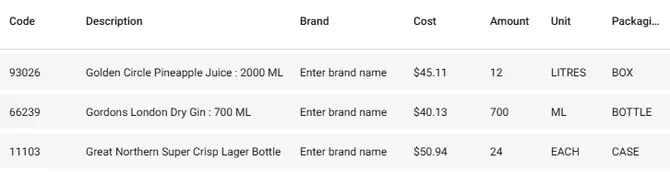
Your Packaging Type should match how your Supplier actually provides the stock, as
this is what appears on their Purchase Order. It’s descriptive and helpful for both
ordering and stocktaking but it isn't used for calculations.
For example, a Box of Pineapple Juice containing 12 litres for $45.11, or a Case of 24 bottles (each) for $50.94.
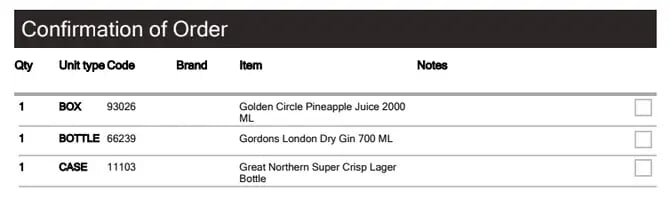
From the above, your Supplier only sees the Supplier Code, Description, and Packaging
Type on their Purchase Order. For example:
The "Each" Pitfall
The unit "Each" is the system default for units of measurement, but it should only be used for items sold or used in their entirety.
- If you can sell part of it and have some left (like a bottle of spirits), or if you have to cut it in the kitchen (like a block of cheese), it is not an "Each."
- Good Use of Each: A bottle of beer or a pre-packaged snack.
- Bad Use of Each: A 5kg block of cheddar or a 700ml bottle of Gin.
Adding and Linking Stock Items
Once your line item has its Amount, Unit, Packaging and Category input correctly, you now have the following options: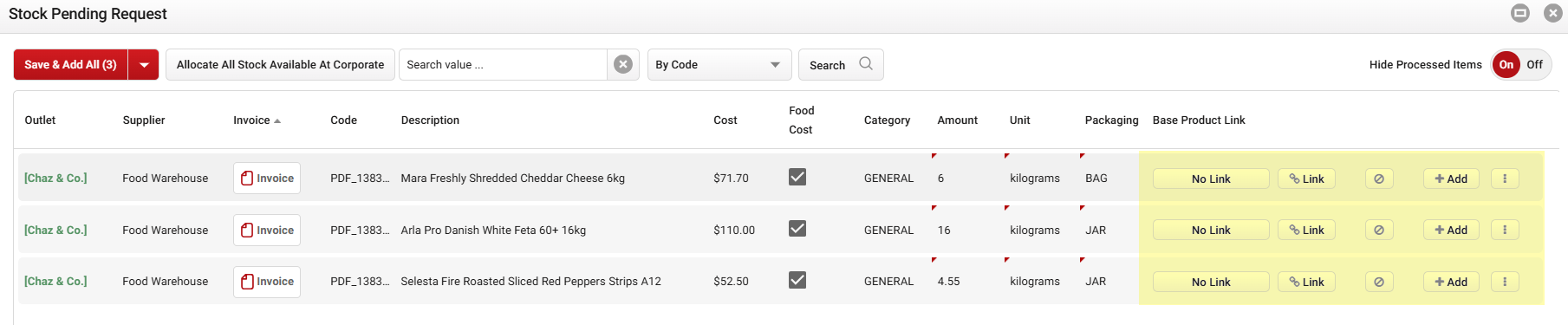
Click image to enlarge
| Icon | Function | Description |

|
No Link | Allows you to link the stock item to a Base Product. Please click here for a detailed look into Base Products. |
 |
Link to an existing item |
Allows you to link a new item to an existing product. Once linked, any invoices that contain the same details for that item will be automatically associated with the linked stock item instead. For items without a Supplier Code to match against, please confirm the received item is the same as an existing product before linking items. |
 |
Non - Inventory Line (Setup Required) |
Converts the item into a Non-Inventory line and removes it from the pending stock list. Note: This option must be enabled first. Please click here for more information about Non-Inventory Lines on Invoices. |

|
Add |
Clicking this will add the new item to your database. Check those units and quantities are correct before adding them in! |
 |
Save & Add All | Saves your changes and adds all stock items on the page to your supplier stock list. All lines need to be reviewed to ensure that all UOM are correct before saving all. |
 |
More Actions |
This allows you to access more actions, such as:
|
 - The Allocate to Other Outlet button lets you allocate the stock item to a different outlet at the same time as adding it to your current outlet. For example, if the invoice the item appears on was received by Outlet A, you can use this button to also allocate the item to Outlet B. Please Note: This action can only be performed while working from the Corporate outlet.
After this is done for all your new items - you’re free to move on back to Receiving
Orders!
For a detailed look into Stock Entry and Measurement Guidelines, please click here!