
Last Updated: July 22, 2026



About Non-Inventory lines
Non-Inventory lines on an invoice are items that appear on the invoice but do not need to be tracked as stock in your inventory.
Unlike your regular stock items on an invoice, these lines will not be added to your supplier’s stock list, but they will still appear on the supplier’s invoice. This means the line detail is captured on the invoice, without the item taking up a spot on the venue’s stock list.
You can use this feature for bills related to maintenance, such as power bills, or for invoices that include a mix of inventory and service charges, such as an oil provider including a refund for returned oil.
Non-Inventory lines will still be included in your invoice and purchase reporting, but they will not appear in inventory reports. They will also be included when you export invoices to your ERP or Accounting Software integrations.
Enabling Non-Inventory settings
Non-Inventory settings are managed per supplier. To enable these settings, go to Admin and open Address Book.
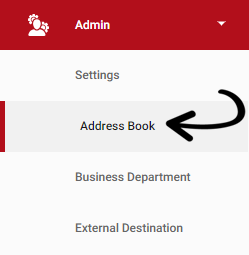
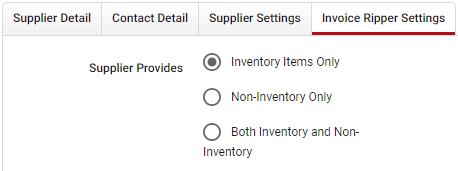
Select the supplier, navigate to the Invoice Ripper Settings tab and set the Supplier Provides type.
-
Inventory Items Only
Pending stock from this supplier cannot be set as Non-Inventory, and Non-Inventory lines cannot be added to an invoice for this supplier -
Non-Inventory Only
Pending stock will not show up for this Supplier, and all invoice lines are considered Non-Inventory -
Both Inventory and Non-Inventory
Pending stock from this supplier can be set as Non-Inventory, and Non-Inventory lines can be added to an invoice for this supplier.
This setting is corporate controlled, so you will need to make any adjustments from the corporate outlet and this will be applied database wide.
Switching a supplier to Non-Inventory will not affect any existing stock items for that supplier. All current stock will continue to appear as Inventory Items in the supplier stock list, and Non-Inventory status can only be applied to future pending stock items or added manually to Purchase Orders and Invoices.
Non-Inventory on Stock Pending Request
If a supplier is set up to allow for Both Inventory and Non-Inventory, then a 🛇 icon will appear on the Stock Pending Request window for any new lines.
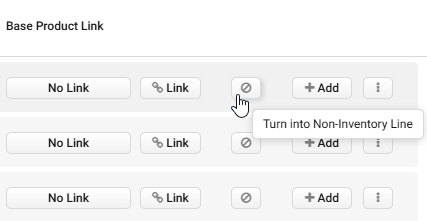
Clicking this button will convert the line into a Non-Inventory line and it will remove it from the pending stock list. You will be asked to confirm your action, as converting to Non-Inventory is not reversible.
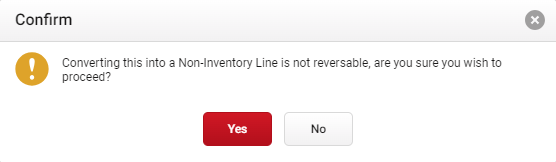
Because Non-Inventory lines are not added to your supplier stock list, they will appear as new items the next time they come through on an invoice. You can simply mark them as Non-Inventory again by clicking the 🛇 icon!
If a supplier is set up as Non-Inventory Only, they will not appear on the Stock Pending Request window.
If a supplier is set up as Inventory Items Only, then there will be no difference in the workflow and this option will not be visible.
Non-Inventory on Purchase Orders and Invoices
When you create a Purchase Order or Invoice, you will see an Add Non-Inventory Line option if Non-Inventory lines are enabled for that supplier.
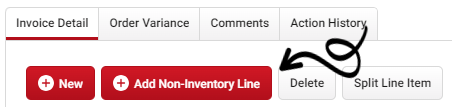
When selected, this will add a Non-Inventory line to the record.
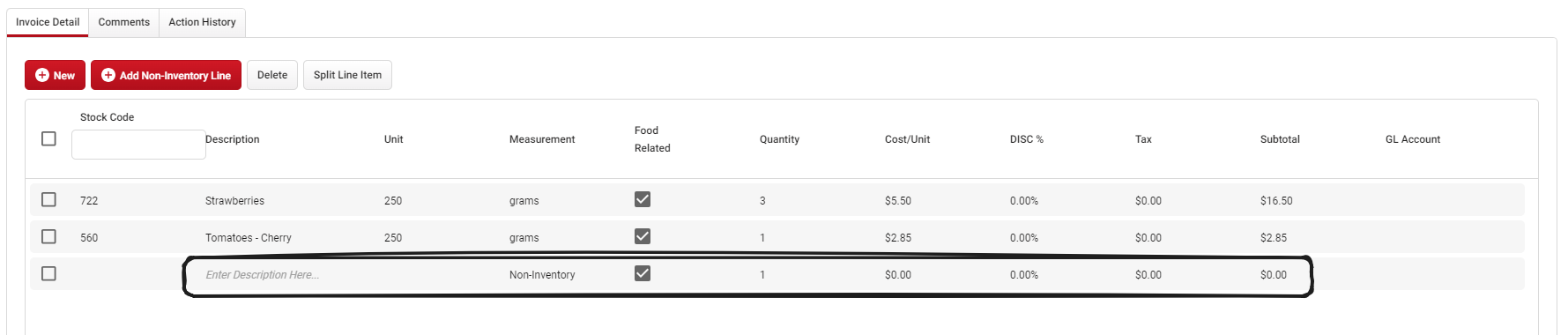
Click image to enlarge Because Non-Inventory lines are not stored in your supplier stock list, you will just need to manually enter the following details.
-
Stock Code
-
Description
-
Quantity
-
Cost
-
Discount
-
Tax
-
GL Account / Accounting System Values
The only required field is the description and all other fields are optional.