
Last Updated: August 19, 2026



What Does Linking Do?
Linking stock items allows you to merge two identical products so the system treats them as a single item, helping you avoid duplicate records and inconsistent reporting.
When you link Item A (usually a duplicate item) to Item B (your existing item), the system effectively merges them. Specifically:
-
The system stops recognising Item A as a separate entity. From the moment of linking, all new purchase data and inventory levels are now attributed to Item B. For example:
-
Searching for Item A in Stock Maintenance will not produce any results, as once linking has occurred, the data is attributed to Item B instead.
- Even if the invoice physically says Item A - once linking has occurred all reporting will be under Item B.
-
-
If you decide to unlink Item A later down the track - any data recorded while it was linked to Item B will remain a permanent part of Item B’s historical record.
When Should You Link?
Linking should only be used when two items are physically the same product. Common scenarios include:
-
Supplier Code Changes: A supplier updates a product code, but the product itself hasn't changed.
-
Inconsistent Descriptions: A supplier doesn't use codes and changes the item description on their invoice, causing the system to flag it as a "New Item."
Avoid incorrect linking to keep your inventory data accurate. Always confirm that the invoice item and the existing stock item are actually the same item before linking them. Even if descriptions are similar, different supplier codes often indicate a distinct product. If you are unsure, it is better to create a new item than to link to an incorrect one!
How to Link Stock Items
Stock links can be managed via the Stock Pending Request window. This can be done while you are processing new stock items, as well as after stock items have already been added to your database.
1. Linking New Stock Items
To link a new stock item, you'll first need to open the Stock Pending Request window. There are two ways to get there depending on your workflow:
- Via an invoice: Open an invoice on the Receiving Orders page that contains new stock items.
- Via the 'Process new stock items' button: Also on the Receiving Orders page, this shows all new stock items across every pending invoice at once.
From the Stock Pending Request window, click the Link button next to the item you want to link:
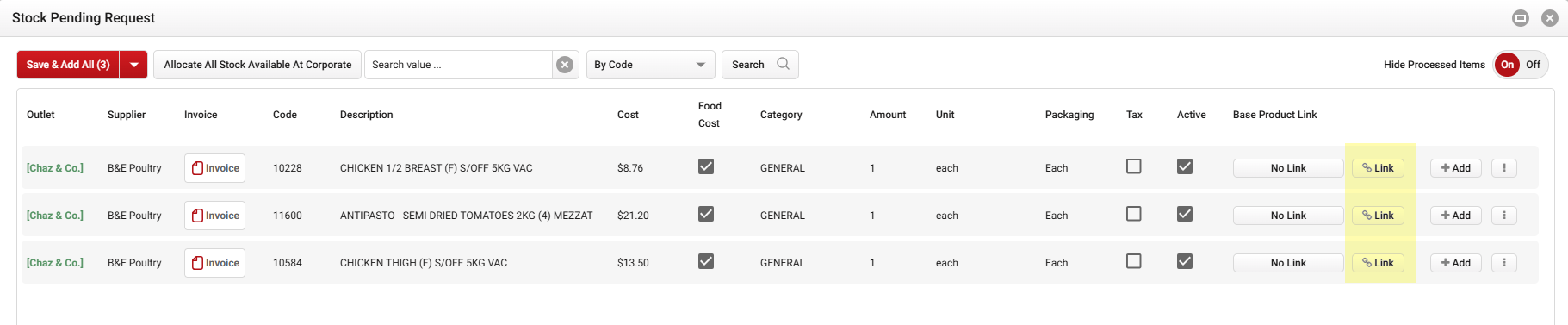 This will open the Stock Browser by Supplier window, which by default searches for matching items by code for the same supplier.
If needed, you can use the filter dropdown to search by description instead. Once you've found the right item, click Select to finalise the link.
2. Linking Processed Stock Items
If you need to link items that were already processed or if you need to fix an incorrect link, navigate to:
Stock > Receiving Order > click the Process New Stock Item button:
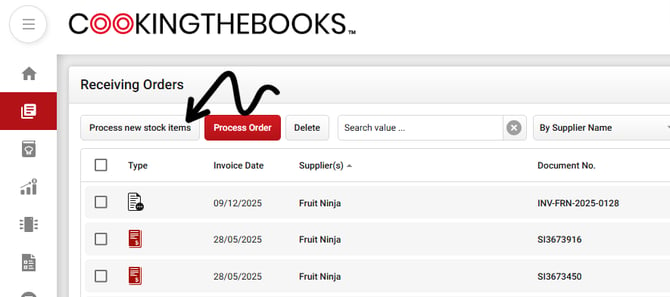
Then toggle Hide Processed Items to Off.
Search for the item you'd like to link, then click the Re-Link button:

Quick Comparison: Linking vs. Base Products
Within the system, you may see buttons labelled "Link" in different contexts. It is important to distinguish between Linking Stock Items and Base Product Stock Links.
| Action | Result | Example | Best Used For... |
| Linking Stock Items | Merges two items into one. | You have an existing 'tomato' stock item from a supplier in your database, but then the supplier changes the code for the same item. You link these items together so all data is associated with one item instead of multiple. | Linking duplicates or code changes. |
| Base Product Linking | Groups separate items together. | Instead of having 10 different versions of Tomatoes to choose from when adding to a Recipe Card, you can add each stock item from multiple suppliers into one “Tomato” Base Product which gets added to the recipe instead. Recipe Costings will be based on the most recently purchased item in the Base Product group. | Recipe costing for interchangeable items. |