
About Exporting Recipes
Exporting your recipes allows you to download your recipe data into an Excel file for reporting, sharing, or external use. You can choose to export all recipes into a single file or generate separate files depending on your selection.
Exporting Recipe Cards
To export recipe cards, navigate to the Admin heading, open the Recipe Book and locate your recipes.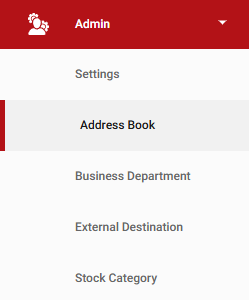
Click More and select Export all to Excel. You will then be prompted to select a destination folder. Choose your preferred folder and click Select.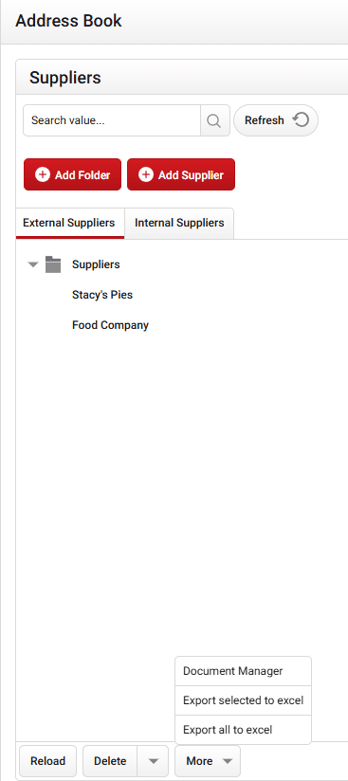
A pop-up will appear asking if you would like to include all recipes in one Excel file. Select Yes or No as required.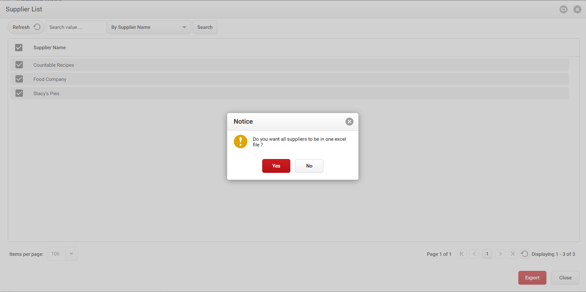
Once the export has been processed, a confirmation pop-up will appear in the bottom-left corner of the screen.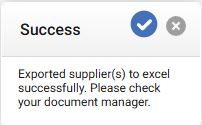
After exporting, click More and open Document Manager.
On the left-hand side, locate the folder named with today’s date in the following format: RECIPE_EXPORT_YYYYMMDD. Select the folder, then click the blue hyperlink shown below the green box to download your exported file.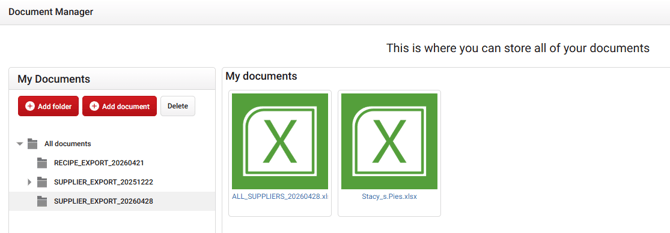
Recipes can also be exported as a PDF using the Recipe Card Report via Recipe > Report.
Troubleshooting tips
- If you cannot see the More button:
- Ensure you are on the Recipes page (not Stocktake or another page).
- Check for any coloured banner at the top of the page; a banner can push page elements down. Close the banner and check again.
- If the More button still does not appear, consider taking a screenshot to assist with investigation.
- If you cannot find the exported file in Document Manager:
- Look for the folder named RECIPE_EXPORT_YYYYMMDD (the folder is dated with the export day).
- Folders may appear partway down the Document Manager list — scroll the list to locate today’s folder.
Recommendation
- For user-friendly, printable recipe layout, use the PDF Recipe Card Report found under Recipe Book > Reports > Recipe Card Report. The Excel export is primarily intended for database transfers rather than presentation.