
Last Updated: March 17, 2026



Placing Purchase Orders
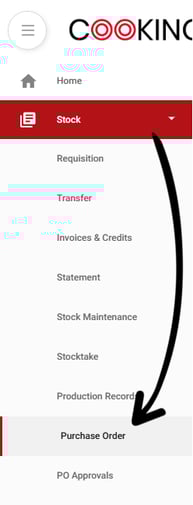
Use the navigation bar and open the Stock tab and click on Purchase Orders.
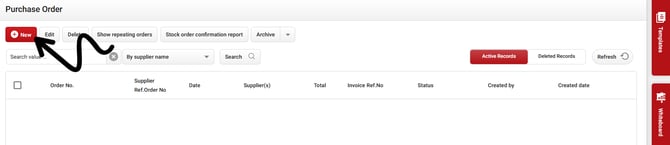
Click on the New button.
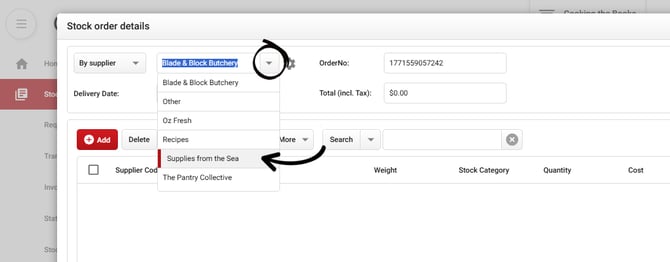
You can select a supplier using the drop down menu. Select Supplies from the Sea.
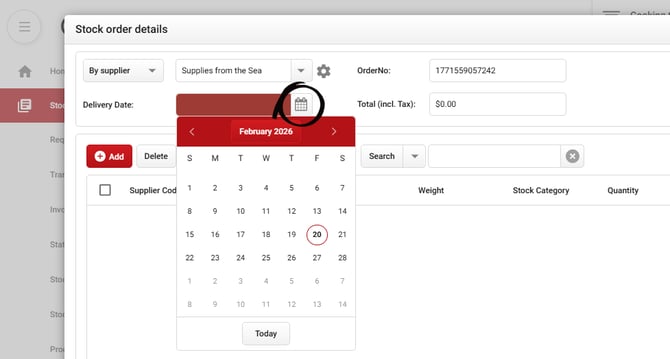
Select your Delivery Date by clicking the calendar.
Now we can add the stock items by clicking the Add button.
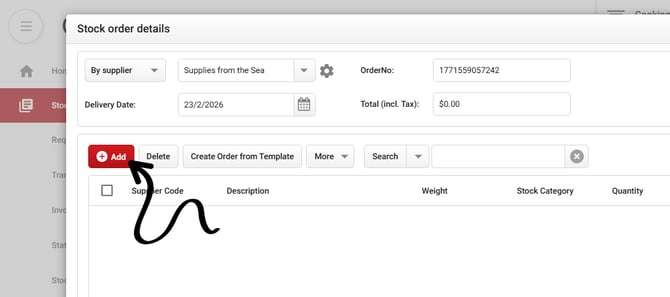
This will bring up the stock lines from your selected supplier that are currently in the database.
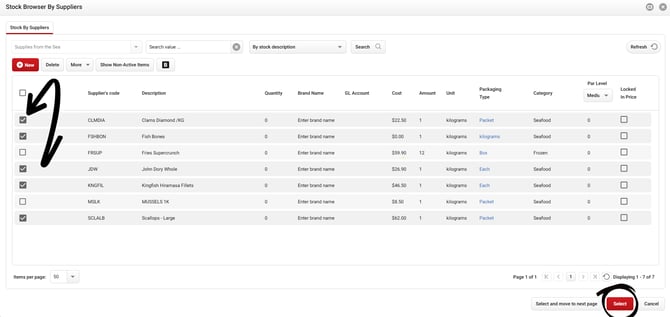
Select the following stock lines by ticking the box to the left then clicking Select
- Clams Diamond
- Fish Bones
- Kingfish Fillets
- Scallops - Large
- John Dory Whole
You can now enter the required quantities by clicking in the quantity column. Notes can also be entered into the notes column if you would like to specify any details to your supplier
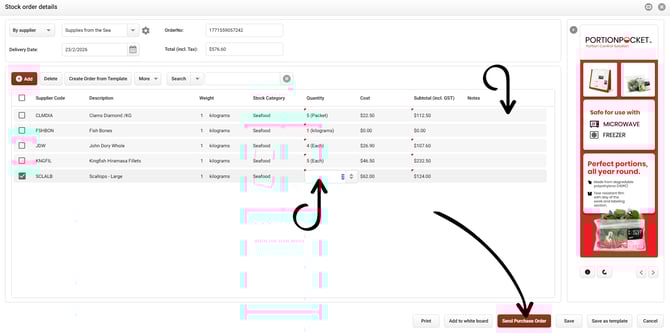
When ready click the Send Purchase Order button
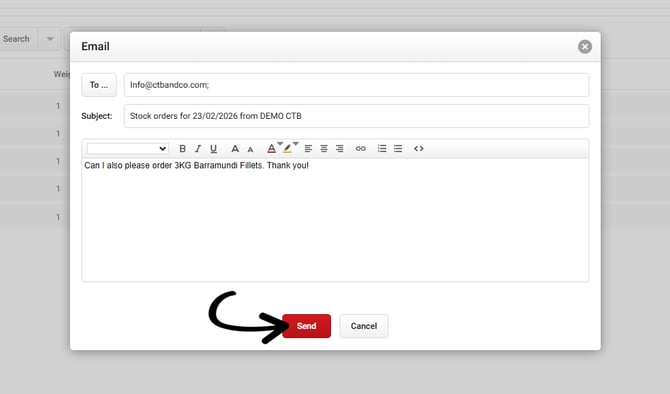
The final step is to confirm the email address you would like the purchase order sent to. You can also add in a note to your supplier here (this is useful if the items you wish to order aren’t in your database).
Important: For testing purposes in the trial database, do not replace the info@ctbandco.com email. This allows you to test the workflow safely without sending an actual order to a supplier.
When ready click Send and your order will be sent to the supplier!
Purchase Order Template Ordering
When on the Purchase Order page you can also access Purchase Order Templates. Templates can be used to curate a shopping list of items you order regularly to save time.
To begin, open Templates by clicking on the drawer on the right side of the screen.

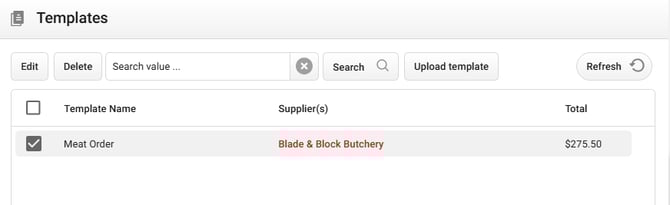
You can open a template by double-clicking on it, or selecting the tick box next to it and clicking Edit. For this example, open the Blade & Block Butchery template.
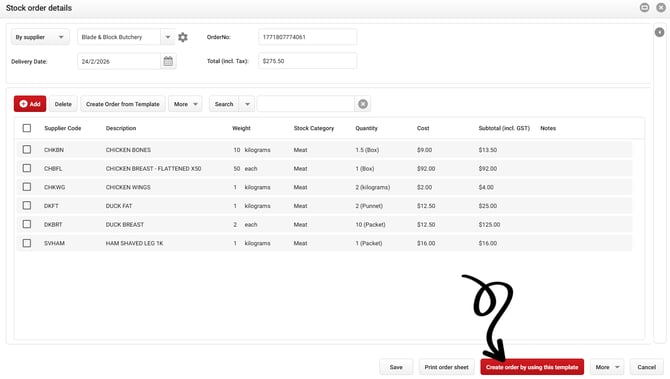
This template has quantities saved in it, which can be used as a par level to streamline ordering. Once any adjustments have been made, click the Create order by using this template button.
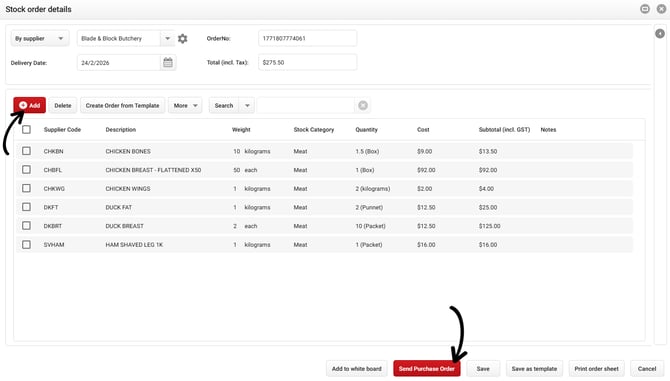
Extra items can still be added to your order by clicking the Add button.
When ready, click the Send Purchase order button to send the order to the supplier.
Whiteboard Ordering
An alternative way to create and send purchase orders is by using the Whiteboard function.
Your Whiteboard lets you collate, review, and send Purchase Orders for multiple suppliers for a chosen delivery date, while providing a clear visual overview of your ordering timeline. Orders added to the Whiteboard can be sent in bulk with a single click, making it quick and easy to organise your deliveries. To learn how this works, please view the following guide:
What's Next? Click here to move onto our next guide to learn about processing Invoices and Credit Notes.