
Last Updated: March 17, 2026



Approving Invoices
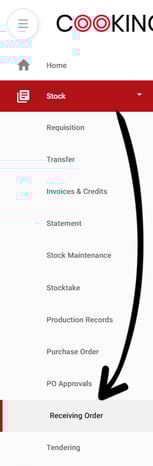
Once a supplier has sent an invoice to your Email for Receiving Invoices, it will appear on the Receiving Orders page, which is found under the Stock tab in the navigation bar.
The steps for reviewing and approving a supplier’s invoice will depend on how the original order was placed.
In this first example, we will approve an invoice for a supplier where no purchase order was placed through CTB.
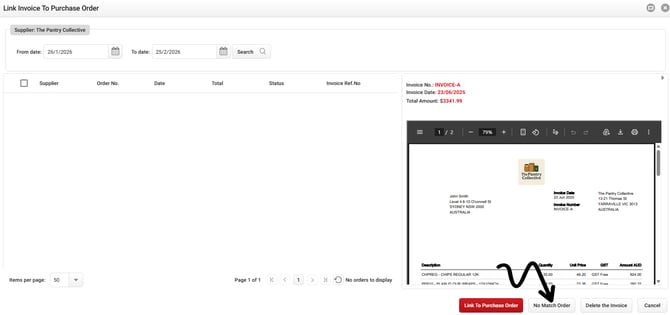
To begin, open INVOICE-A (from The Pantry Collective) by double clicking on it.

A new window will open that will allow you to link this invoice to a purchase order. In this instance no purchase order was placed through CTB, so you can press the No Match Order button.
The next step is confirming the invoice details and approving stock items.
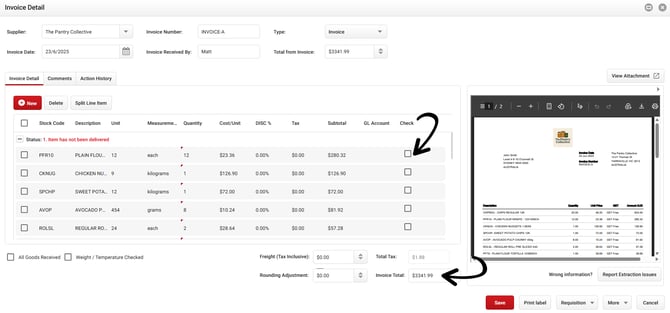
First, confirm the extracted Invoice Total matches your supplier's invoice.
Then, confirm the stock has been received by clicking the check box to the right of each item. In this example tick all the boxes:
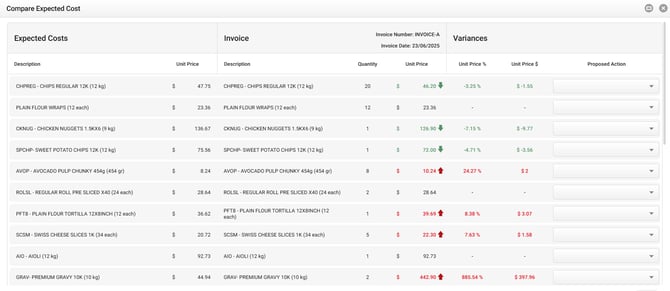
The next window will display a comparison of costs. On the left column it will display the last approved price in the system, the middle column displays the price on the invoice and the right column displays any variances.
To finalise the invoice, scroll to the bottom of the page and click Approve.

This invoice will then be moved to the Invoices & Credits tab and can be exported to your accounting platform.
Matching an Invoice with a Purchase Order
In this example, we will manually link an invoice to a purchase order that was previously sent from CTB.
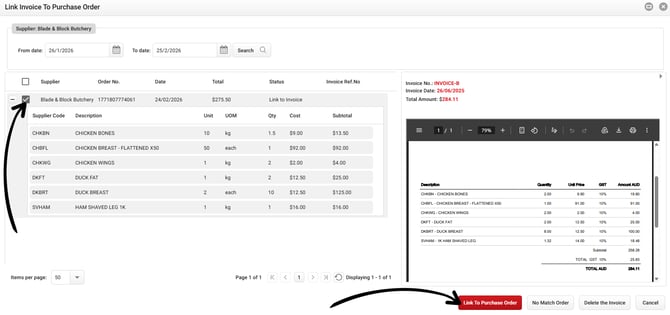
To begin, open INVOICE-B (from Blade & Block Butchery) by double clicking on it.
In the next window, the purchase order will appear on the left. Select it by ticking the checkbox beside it, then click the Link to Purchase Order button.
Proceed to confirm that all stock has been received as per the previous example, and click Save.
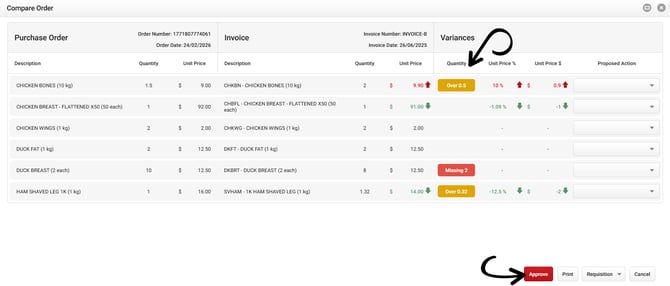
In the comparison window you will now see the Purchase Order on the left, Invoice in the middle and Variance on the right. This time you will see a comparison of what was ordered compared to what was actually received.
When you're ready, click Approve to finalise the approval.
Next, proceed to link INVOICE-C (Supplies from the Sea) to the purchase order you placed earlier, and approve all items (as shown in previous steps).
NOTE: Invoices that have been received to your custom email address which contain your original Purchase Order number will be automatically linked on the Receiving Order page. For more information on this process, click here.
Raising a Credit Request
For this next example, open INVOICE-D (Oz Fresh) and select No Match Order.
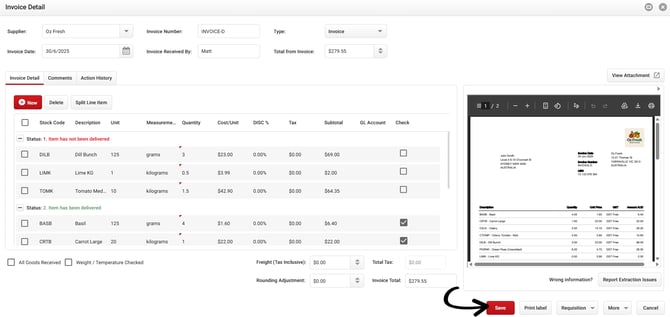
This time we are going to leave the following items unticked:
- Dill
- Lime
- Tomato
This tells the system that we either have not received these items, or we wish to return them due to poor quality or other issues. When ready click the Save button and continue as normal.
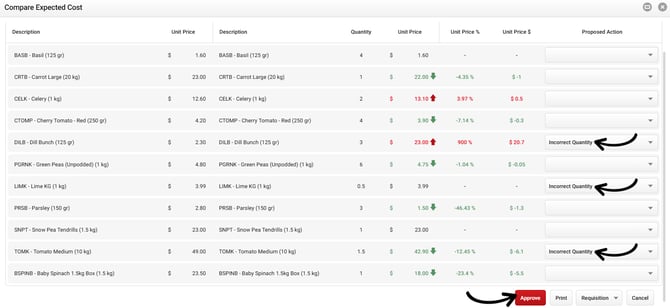
On the comparison window you will see these items have been marked as Incorrect Quantity in the Proposed Action column on the right (the wording can be adjusted in the next step to be more specific).
After you have checked the pricing differences, click Approve.
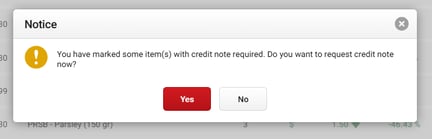
The system will then prompt you to send a credit request to the supplier. Click Yes.
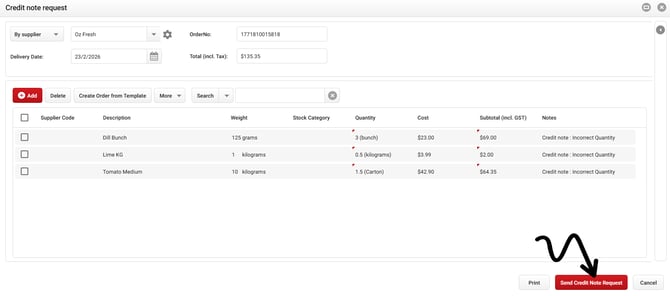
A credit note request window will now open, where you can make adjustments before sending to the supplier.
In this instance we will not make any adjustments. Simply click the Send Credit Note Request button.
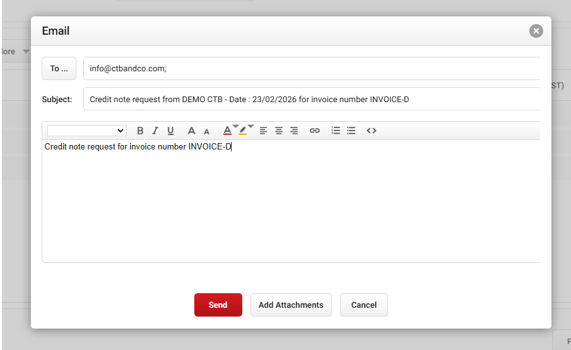
 A final pop up will appear where any extra information you wish to share with your supplier can be added, including images.
Click Send to finalise this invoice and send the credit request.
Cooking the Books also helps manage your Locked in Pricing. For the next example, open INVOICE-E (Blade & Block Butchery) and proceed to No Match Order, approve all stock and click Save.
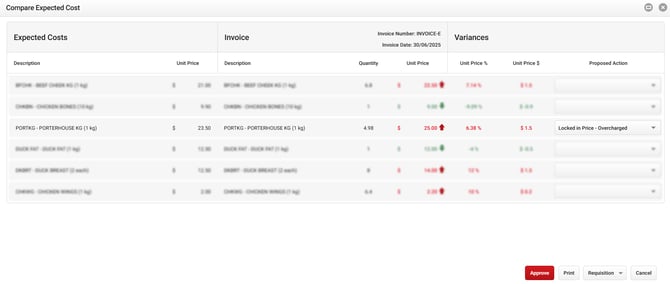
On the comparison page, you'll notice that the Porterhouse will be marked as Locked in Price-Over Charged in the proposed action column.
When clicking Approve, the system will prompt you to send a credit request. Send the credit request as shown previously, and finalise this invoice.
Entering New Stock Lines from an Invoice
The last two invoices will highlight how the system picks up new stock lines, and the process for adding them to the system.
Open INVOICE-F (Oz Fresh) and proceed to No Match Order.
A new window will open highlighting the new stock lines detected. These items need to be added to the database before the invoice can be approved.
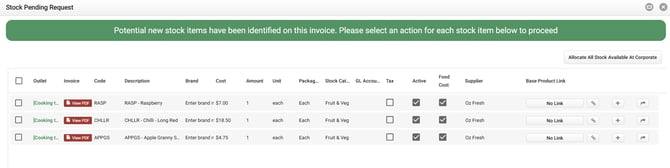
It is Crucial that the correct information is added at this stage to prevent issues down the line with reporting and costings in the system.
Each item will need the following fields updated: Amount, Unit, Packaging and Stock Category.
This information may be in the stock description, or on the invoice, which can be viewed by clicking the View PDF button next to the stock line.
Simply click into each of the columns to update the stock lines. When finished they should look like this:
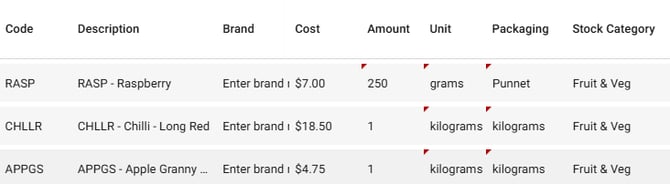
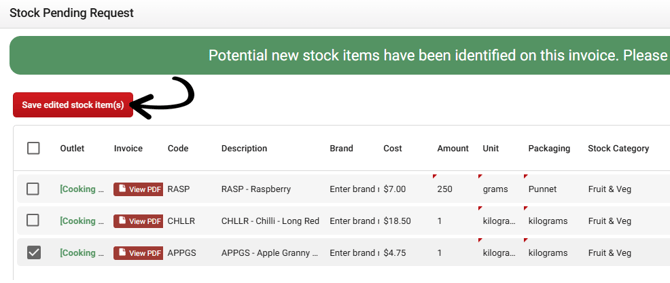
Once this information is updated you can click the Save edited stock item(s) button.
The stock is now ready to be added to the database! To do this simply click the plus icon to the right of the page, next to each stock item.
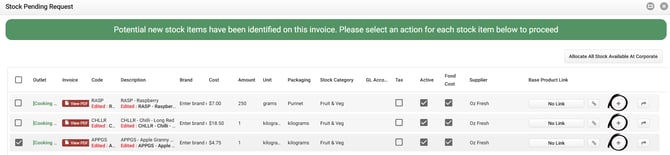
This invoice can now be approved, and the stock items have been added to your database for future use.
For this final invoice example, open and approve INVOICE-G (The Pantry Collective), making sure you add the new stock items in the same way you did for the previous invoice.
Linking Credit Request to Credit Note
Lastly, you will then see credit notes (and their corresponding credit requests) awaiting approval on the Receiving Orders page.

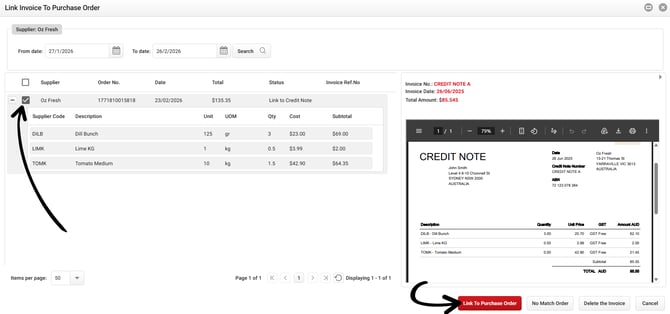
The process is very similar to linking a purchase order and approving an invoice. To begin, double-click CREDIT NOTE A (Oz Fresh) and select the relevant credit note request on the left, then click Link to Purchase Order.
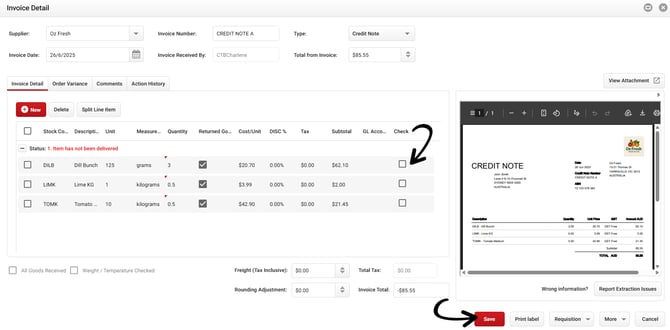
Review and check off the items, click Save, and finally select Approve to complete the credit note.
NOTE: Credit Notes that have been received to your custom email address which contain your original Credit Request number will be automatically linked on the Receiving Order page. For more information on this process, click here.
What's Next? Click here to move onto our next guide to learn how to create recipes!