Last Updated: October 27, 2026
From the Corporate outlet's navigation bar, expand the Stock heading and open the Purchase Order page. Select the Purchase Order Templates draw on the right-hand side
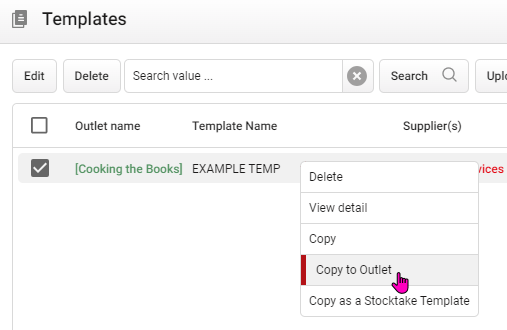
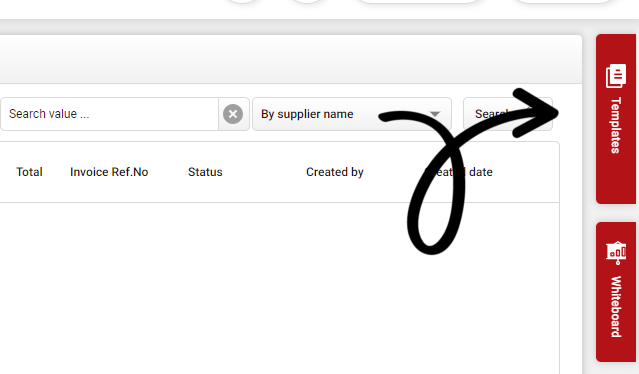 Right click the template you want to copy, then select Copy to Outlet
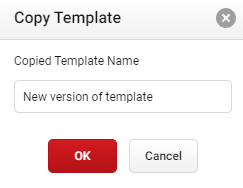
 You will be given the option to change the name of the template. Select OK once done
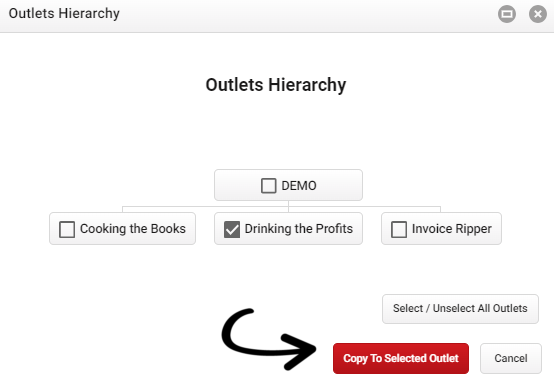
 Your Outlet Map will then be displayed. Tick the outlet(s) you wish to copy the Purchase Order template to, then select Copy to Selected Outlet
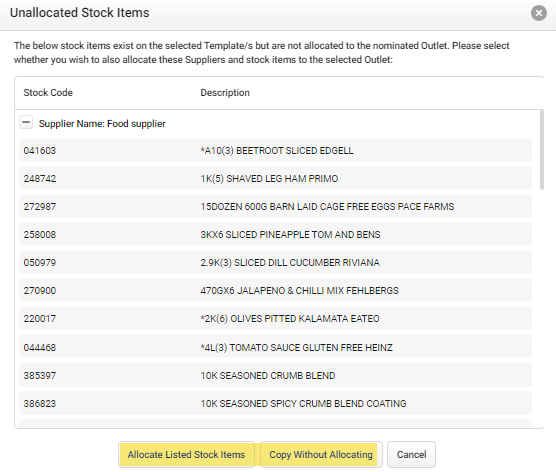
 If there are any items on your template that are not allocated to the destination outlet, they will be listed before any allocation occurs. You can either:
-
Allocate Listed Stock Items to allocate all the items to the destination outlet
-
Copy Without Allocating to exclude any unallocated items from the copy