



Adding barcodes to your stock items makes stocktakes more seamless when using the Cooking the Books app. Once a barcode is linked to an item, you can simply scan it during a stocktake and enter the count as you move around the venue—no searching required!
You can add and link barcodes in two ways:
-
Directly in the Cooking the Books app (phone or tablet), or
-
Via the CTB website on a computer (with or without a barcode scanner).
Link Barcodes via the Cooking the Books App
This method lets you scan and link barcodes directly while inside a stocktake.
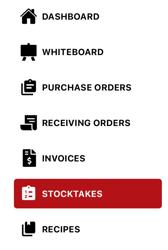
To begin, open the Cooking the Books app. Tap the three horizontal lines on the top-left corner to open the menu, and select Stocktakes.
Next, open an existing stocktake or create a New one. Once inside the stocktake, select the QR code icon (located next to the Filter button).
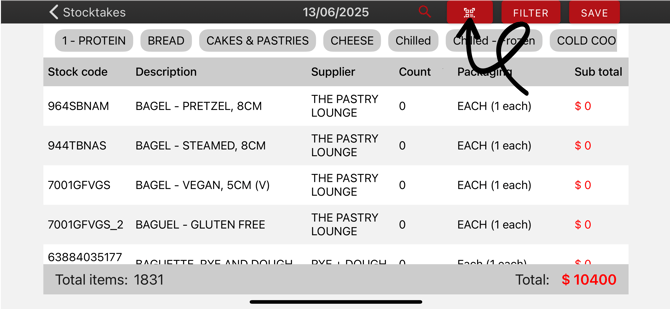
This will open the barcode scanner using your device’s camera.
Simply scan the items barcode, and you’ll be automatically prompted to link it to a stock item.
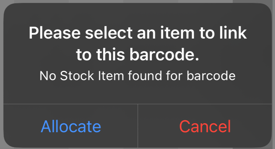
Select Allocate, and scroll through your stock list to choose the relevant item. You can also select the magnifying glass to search for the item instead.
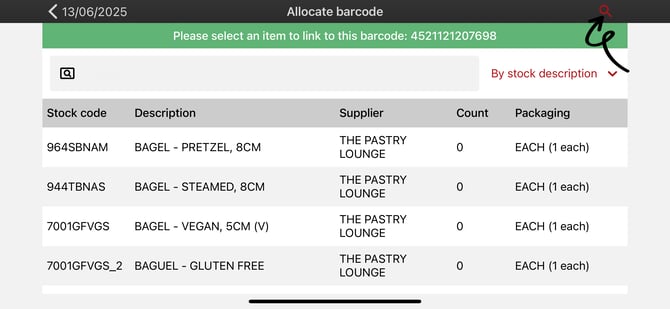
After you've selected the correct stock item and the barcode has been linked, it will remain associated with that item going forward.
Now the next time the barcode is scanned during a stocktake, the item will automatically appear so you can enter the count, save, and continue to the next item!
Notes:
- Scanning an item without an assigned barcode will prompt you to link the barcode to that item. If the item already has a barcode assigned, you will be taken directly to the stock count entry screen.
Enable Barcode Field in Stock Maintenance
Before you can add Barcodes on the website, you need to enable the Barcode column in Stock Maintenance.
To do this, navigate to Admin then select Settings.
From the Main Settings section, scroll down until you see the Grid Settings - Show/Hide grid columns option, and select Grid Settings.
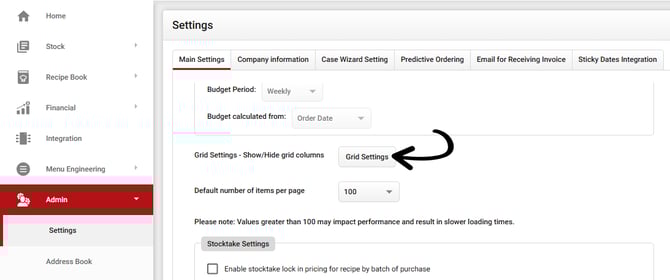

Link Barcodes via the CTB Website (Computer)
This method lets you add barcodes to your stock items through Stock Maintenance on the CTB website. This works whether you’re using:
-
A physical barcode scanner connected to your computer, or
-
Manual copy-and-paste entry.
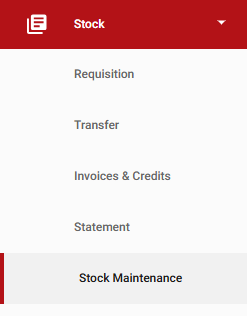
To add barcodes:
-
Using a scanner:
-
Double-click the barcode field.
-
Scan the item with your hand scanner.
-
The barcode number will automatically populate.
-
-
Manually:
-
Double-click the barcode field.
-
Copy and paste the barcode number directly.
-
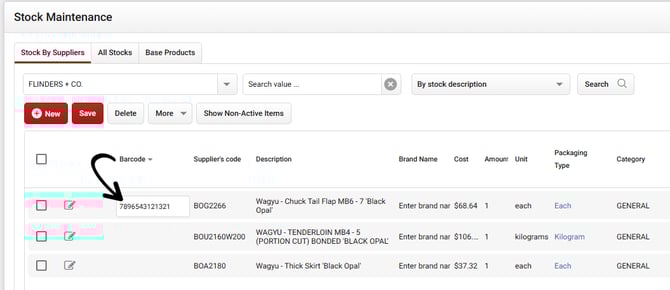
Repeat for each item and remember to click Save once complete!
What happens next?
-
Any barcodes added via the website will automatically be available in the app.
-
You can then scan those items during stocktakes from the app, and enter counts as you walk around the venue.
Important Tips: Linking the Correct Items
Care should be taken to ensure barcodes are linked to the correct stock items:
-
For cartons and individual items with different stock codes, make sure the barcode matches the exact item it represents.
-
For cartons and individual items that share the same stock code, the barcode should be linked to the smallest unit of measure. For example, if a product is available as a carton, 6-pack, and individual bottle, the barcode should be linked to the individual bottle. This allows the item to be found via barcode and counted accurately using the Unit Conversion feature during stocktake.